Process
The following illustrates the process I went through for this project, with the second iteration underneath the first:
Define
Learn
Design
Build
Validate
Explored what a Wi-Fi app could be for subscribers; studied competitors.
Aligned the vision with PM, marketing and engineering.
Two hero scenarios, six features, key screens and an icon set.
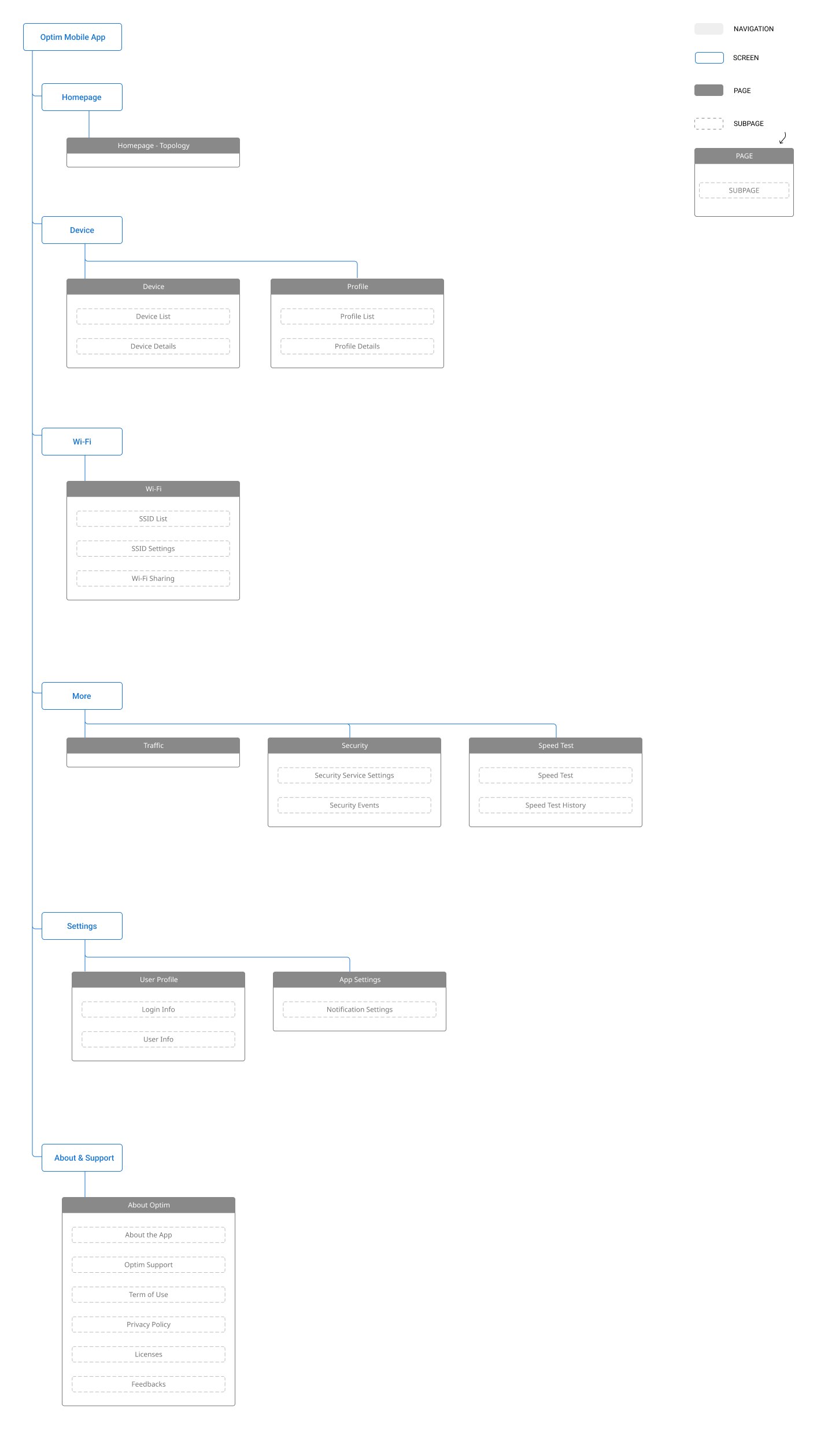
Site map, wireflow and information architecture.
Internal testing.
Studied what a household needs from the router, and what can stay behind More.
Home, sign-in and setup, speed test, coverage, devices — a design doc each.
Port forwarding, security and the service store.
Each doc approved for design, copy and development.
Iteration 1
Optim Mobile App
*Due to a non-disclosure agreement, I am unable to share detailed product images, features and other sensitive material. I have omitted confidential information in this post.
The Background
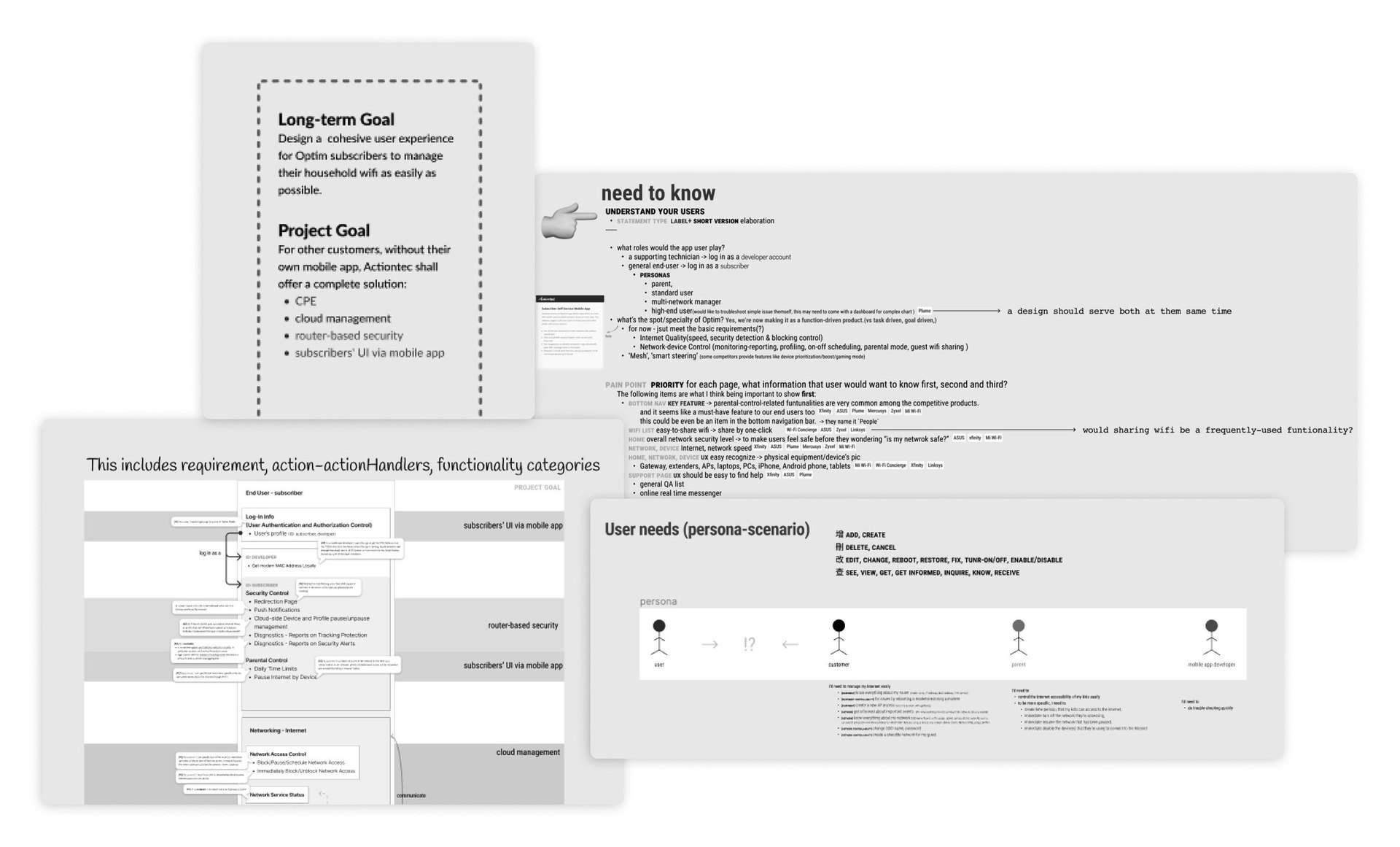
With the continuous upgrading of routers and their capabilities, there is a growing need for corresponding solutions that can support the enhanced performance of these routers. As a cloud service provider for Internet Service Providers (ISPs), Optim realized the importance and opportunity to serve end-users in the service journey. In order to determine unmet user needs within our current set of products. we kicked off the efforts within our users’ pre-existing workflows.
We also recognize the potential of a mobile app to provide an even more comprehensive solution for our customers. For end-users, a mobile app can offer convenience, self-service capabilities, real-time monitoring, and security in managing their household WiFi. For ISPs, a mobile app can improve customer satisfaction, reduce the workload for customer support teams, differentiate from competitors, and provide more end-point data that can further benefit marketing and sales.
With these factors in mind, we have established our goals for this project with a focus on providing added value for our ISP partners while also meeting the needs of end-users.
Time
2022-2023 (Started in spring 2022, this project was once put on hold but has recently entered a new iteration phase. The following showcasing its initial design.)
Handled tasks
Early stage exploration, competitor research, ideation & proposal, user testing, iteration facilitation
The Idea:A Wi-Fi Remote in Your Pocket

The Optim mobile app is a bundled product that is compatible with Actiontec-produced hardware products. It’s like a TV and its remote control. Either one is indispensable. While the router serves as the main component of home internet service, the Optim mobile app provides a user-friendly interface that enables easy management of WiFi settings, including WiFi connection overview, speed test, black list, and advanced features such as parental control, traffic stats, and network topology visualization. With the Optim mobile app, managing home WiFi networks has never been easier.
The ideal situation
Having a wifi management tool can provide users with a more streamlined and efficient way to manage their wifi network. It can allow users to quickly and easily make changes to their network settings, troubleshoot issues, and optimize performance. Additionally, a management tool can provide more comprehensive information about the network, such as data usage and device connectivity, which can help users better understand and control their network.
Yes, it is the ideal situation;
…how do people currently manage their wifi, though?
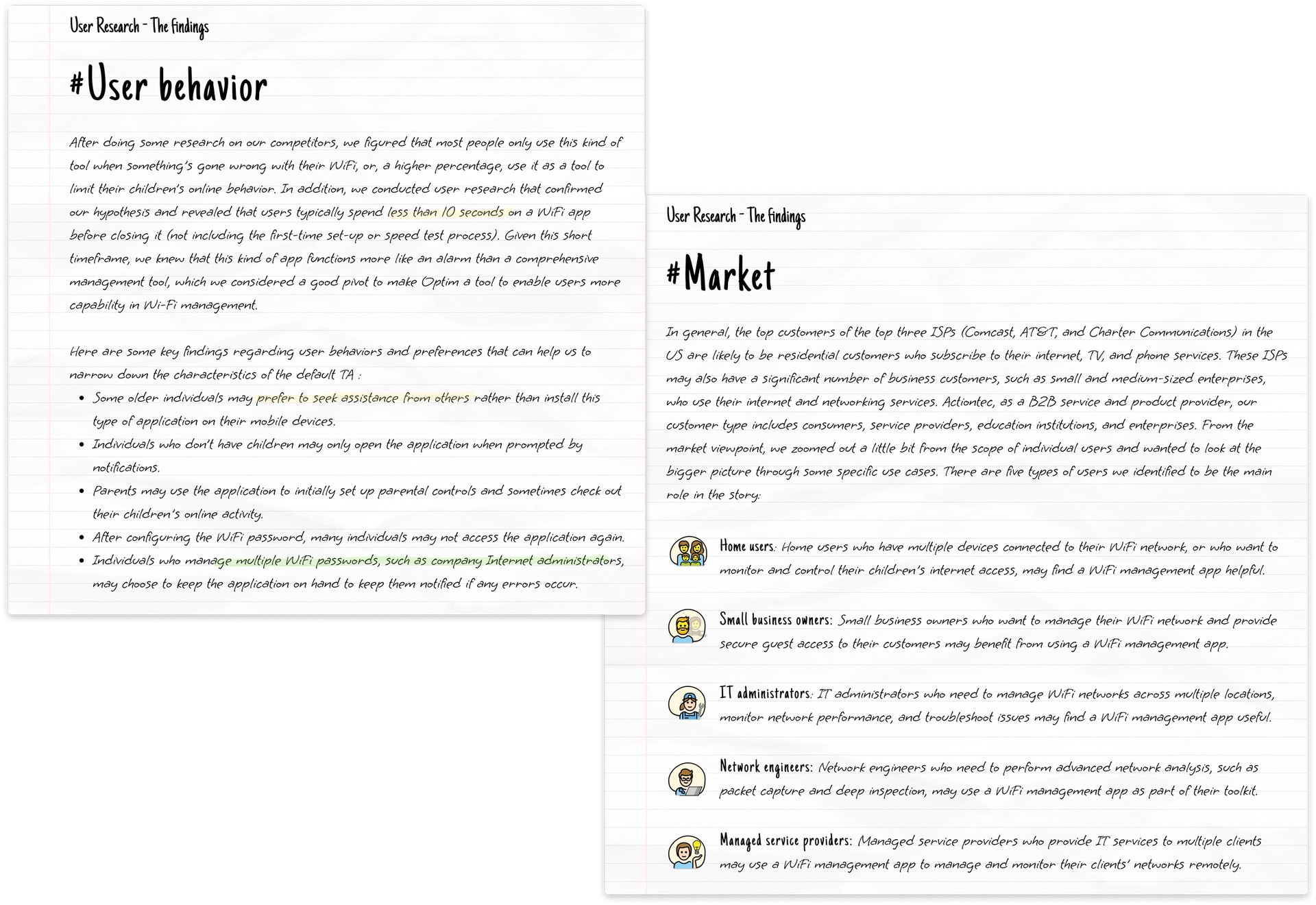
As we started to ask, we quickly realized that Wi-Fi management for individual users is not really a thing, or we could even say it’s more like hands-off management. To end-users, the only thing they care about using Wi-Fi is whether it works or not. That being said, when it comes to Wi-Fi management, the more common case is troubleshooting.
(Non-Optim users)
(Optim users)
At the time, Optim users troubleshoot their Wi-Fi with physical solutions: restarting routers or calling for help, and they can’t do anything if they’re away. As for non-Optim users, they do similarly, but if they can access any online applications, they’d try first, and if they can’t solve it on their own, they will reach out with the ultimate goal of having a technician fix the problem.
It’s not difficult to notice the need for an assistant to keep the wifi-using process smooth at any given point. People use wifi management tools in order to use the Internet with greater ease.
Perhaps, a better question to ask here is
How might a wifi management tool improve the wifi using experience?
We need to look into what people care about while using the Internet. A home wifi user may be like “Is it functioning normally now? If not, I want to get it fixed ASAP.” No question it reflects the desire for Internet accessibility and problem-solving efficiency.
With regards to those meant for business purposes, according to our search results, they care more about stability, security, and cost.
Optim guides you do simple troubleshooting and equipment set-up, no need to call out for a technician all the time
Optim monitors your network activities and shows you the data to know better your network in a glimpse

Optim guards at the gate of your Internet entrance and keep you posted 24/7
Aligning on goals
Before beginning any design work, I brought together PM, marketing leader, and engineering leaders together as part of a couple of times of online meetings. People joined from Santa Clara, Shanghai, and Taipei, with the goal of agreeing to a unified vision.
Within the constraints
In order to ensure that the product meets the user needs while taking into account technical constraints and the existing business model, the product team has set the initial target audience as any end-users who own Actiontec-produced routers, a.k.a. the subscribers of ISPs. Due to the fact that end-users will be registered via their ISP account, there is a limitation in terms of the real-time data that can be obtained by Optim. This time gap may cause potential frustration for users, which will need to be addressed.
Additionally, due to the fundamental design of the firmware, there may be limitations in the capability that the Optim service can achieve in terms of device discovery and identification on a network. This will impact the way that we present topology and other relevant information in the app.
User journeys and promises
As we moved toward making “A remote in your pocket” a reality,
we narrowed our scope down to 2 hero scenarios that highlighted our user promises:

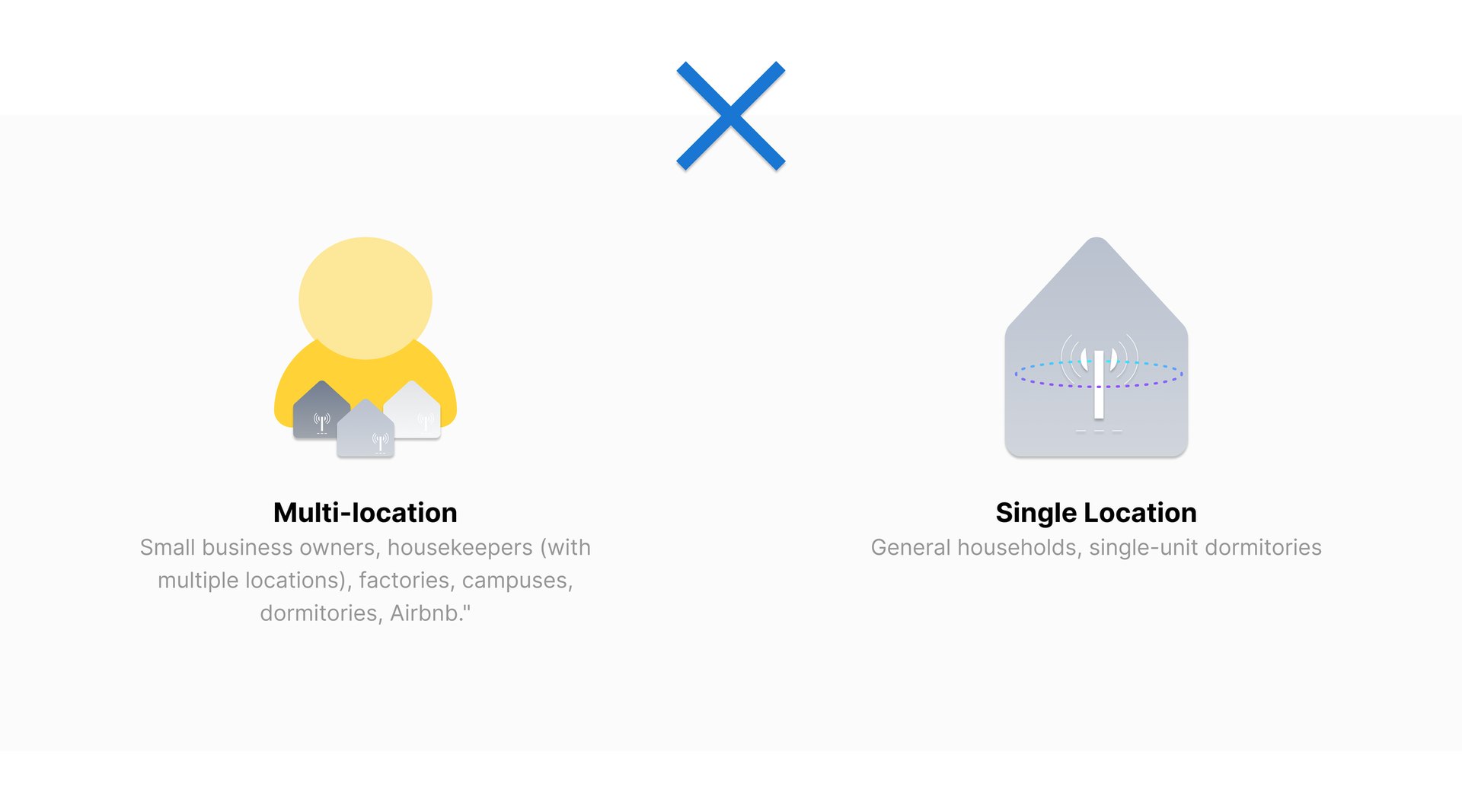
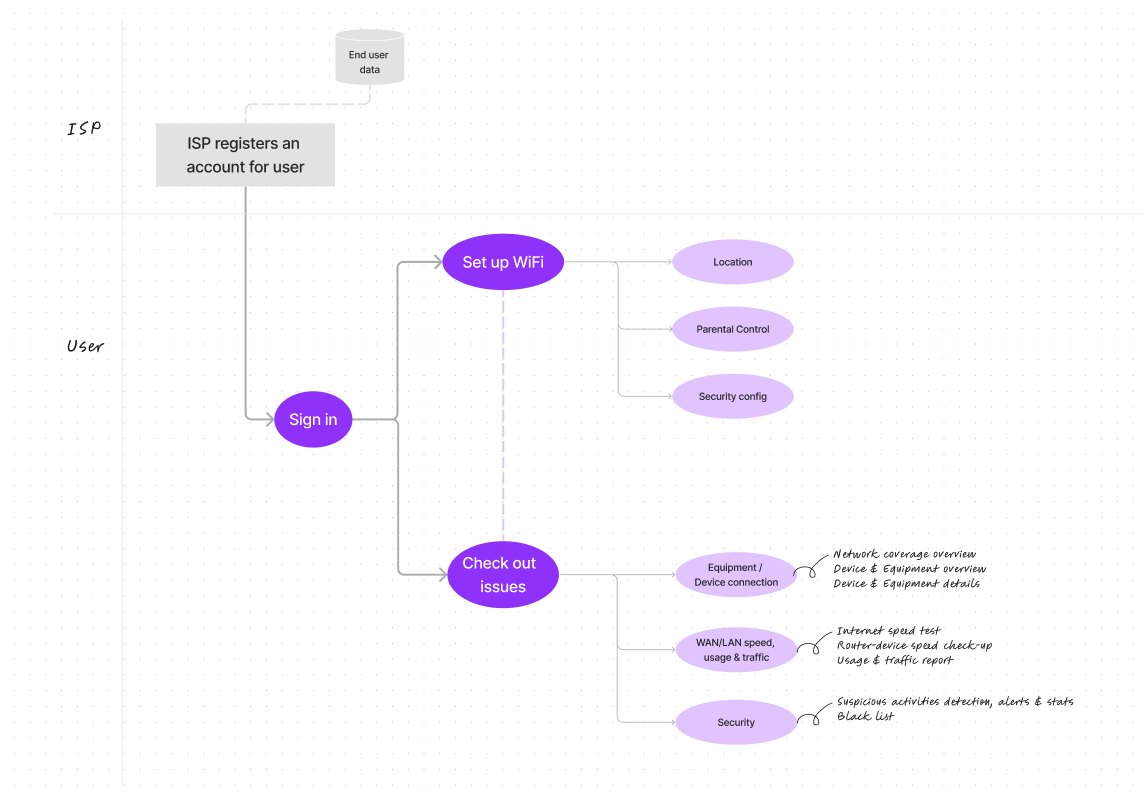
Optim's service for individual users can be activated immediately after their account is created by the ISP. The tasks for users after logging in to Optim are divided into two categories: "active tasks" and "passive tasks". The former includes settings such as WiFi and parental control, while the latter mainly involves receiving notifications and monitoring data.
To map use cases to Optim, we broke it down into six major features, and each feature functions independently:
- Overview - Topology
- Device
- Wi-Fi
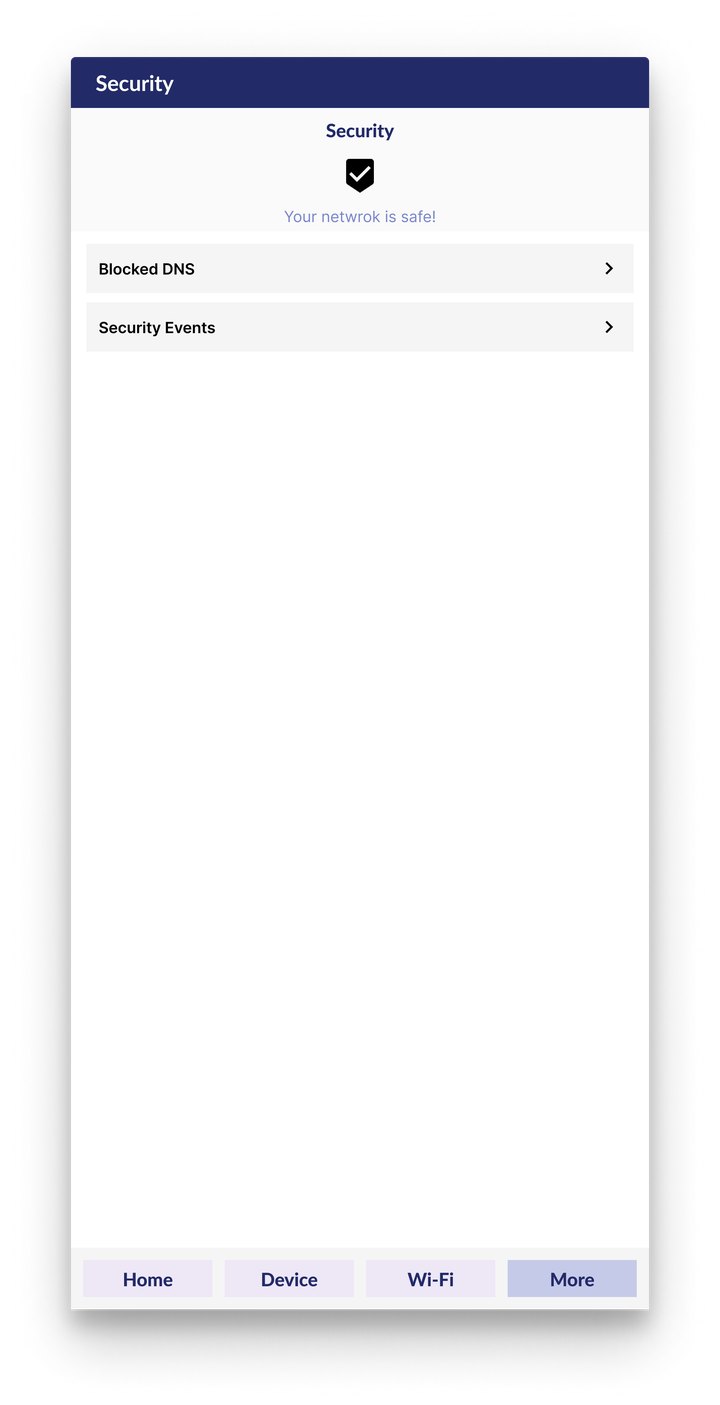
- Security
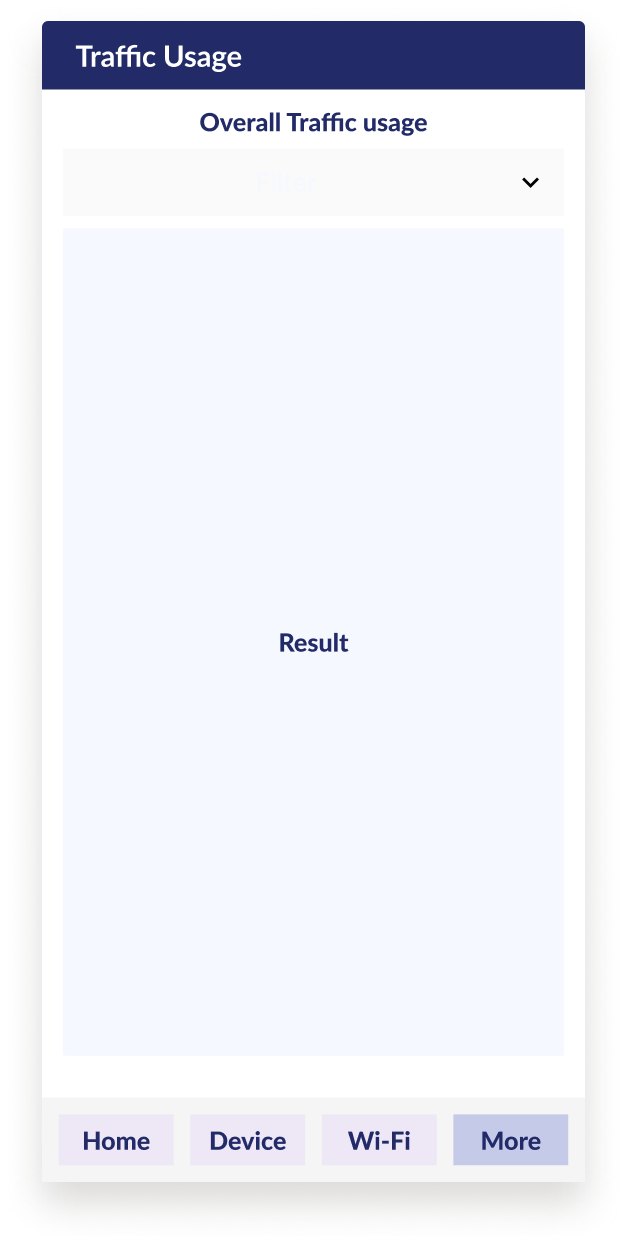
- Traffic
- Parental Control
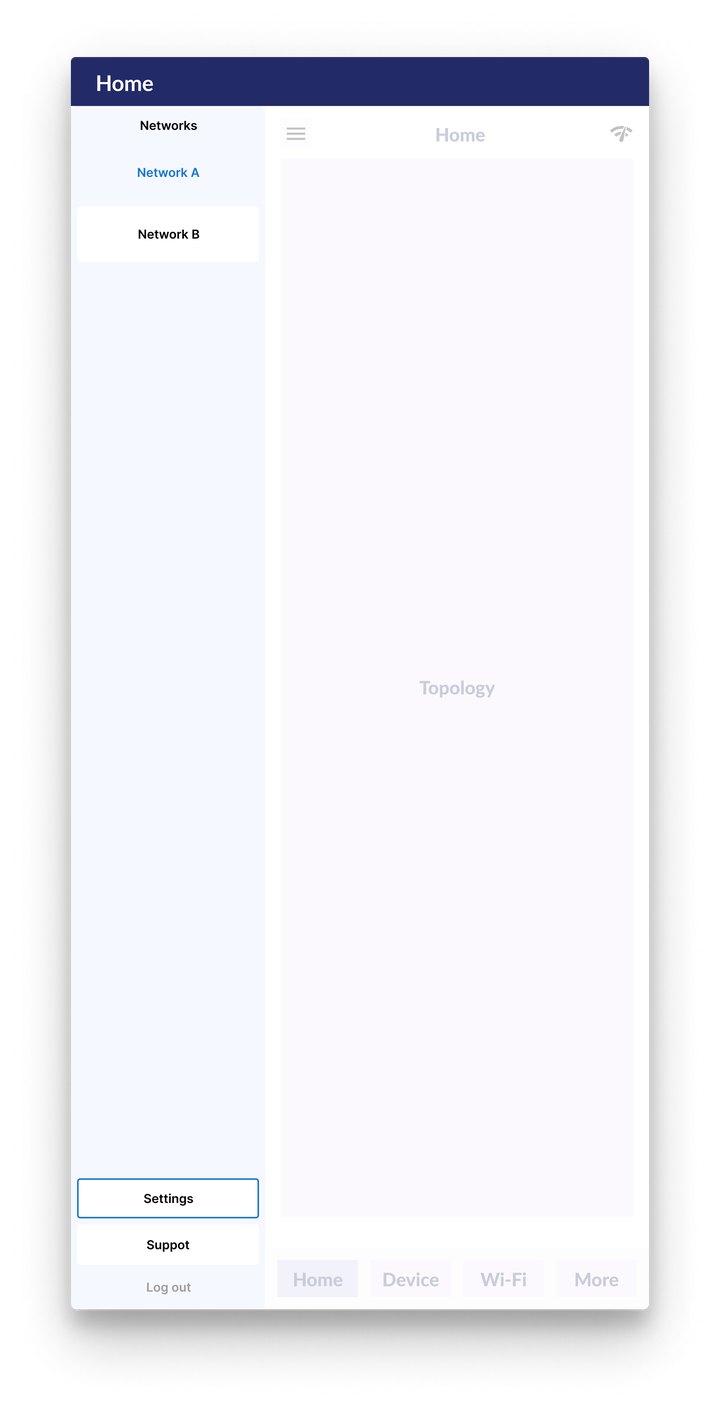
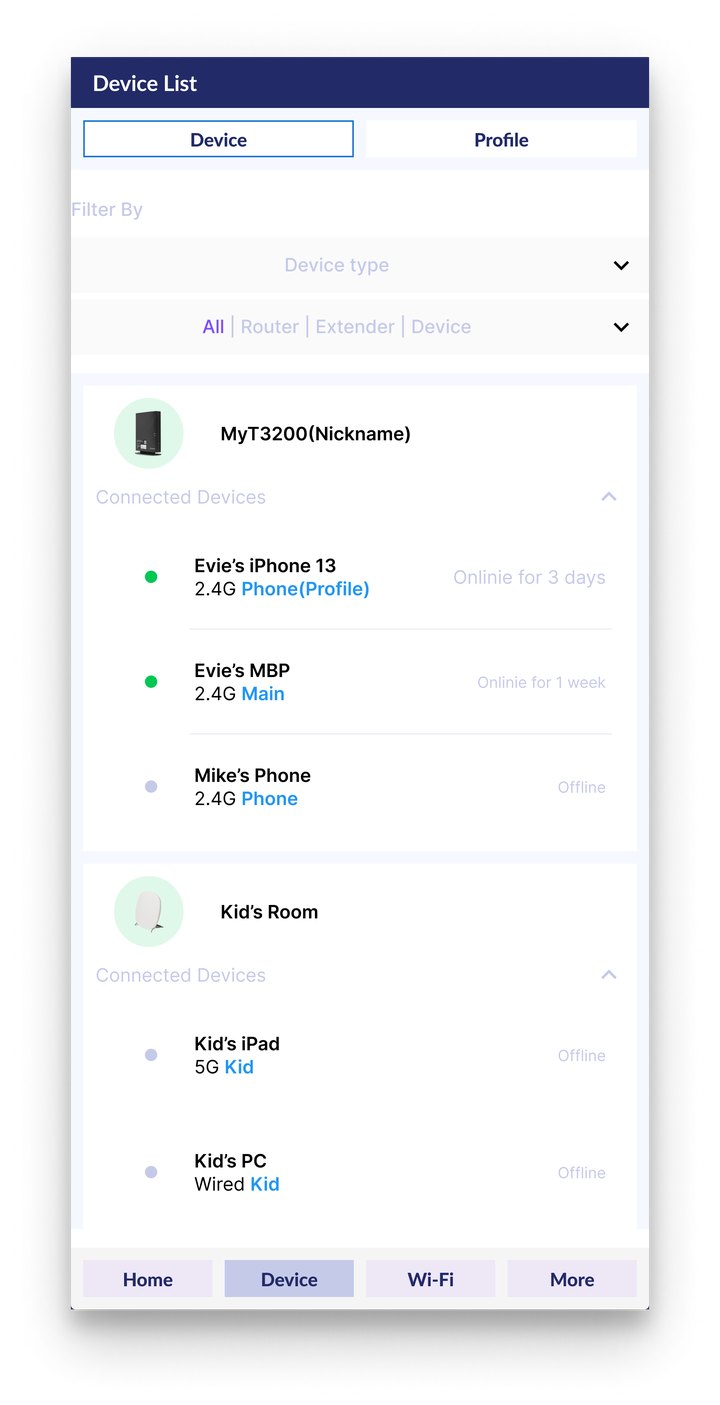
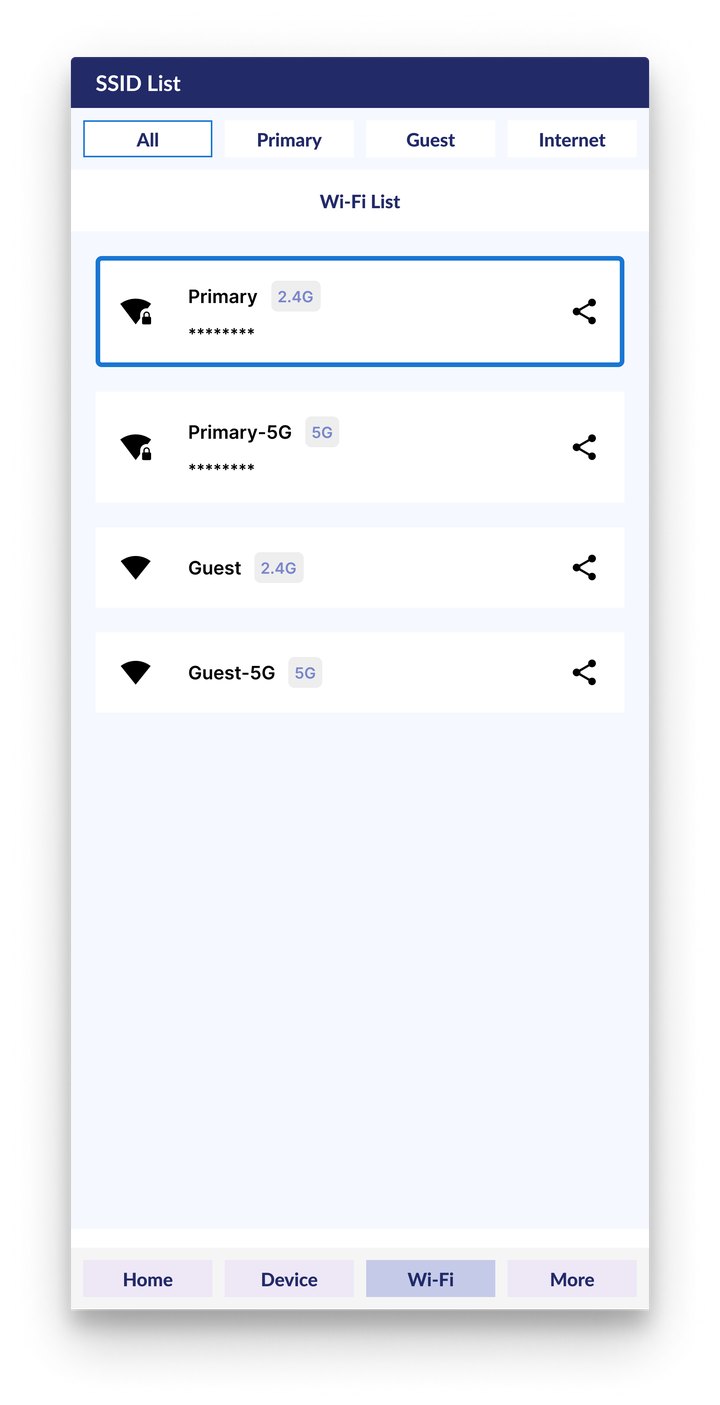
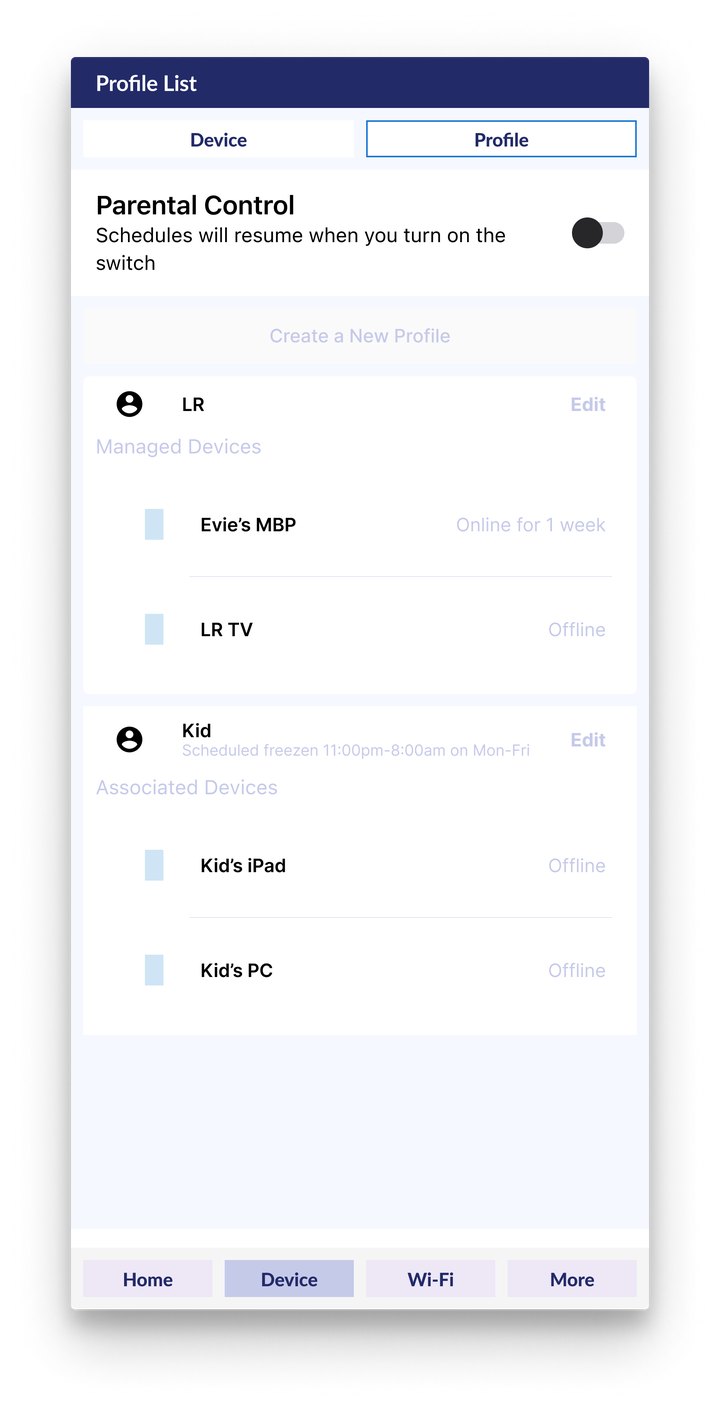
(Profile List)
Scenario 1 - Multi-location frequent management 多點密集管理

- An Airbnb business owner managing several locations
- Needs to turn off the smart appliances connected to the wifi when not in use
- Needs to manually remove the previous tenant's devices from the wifi list to ensure that only authorized connections are present.
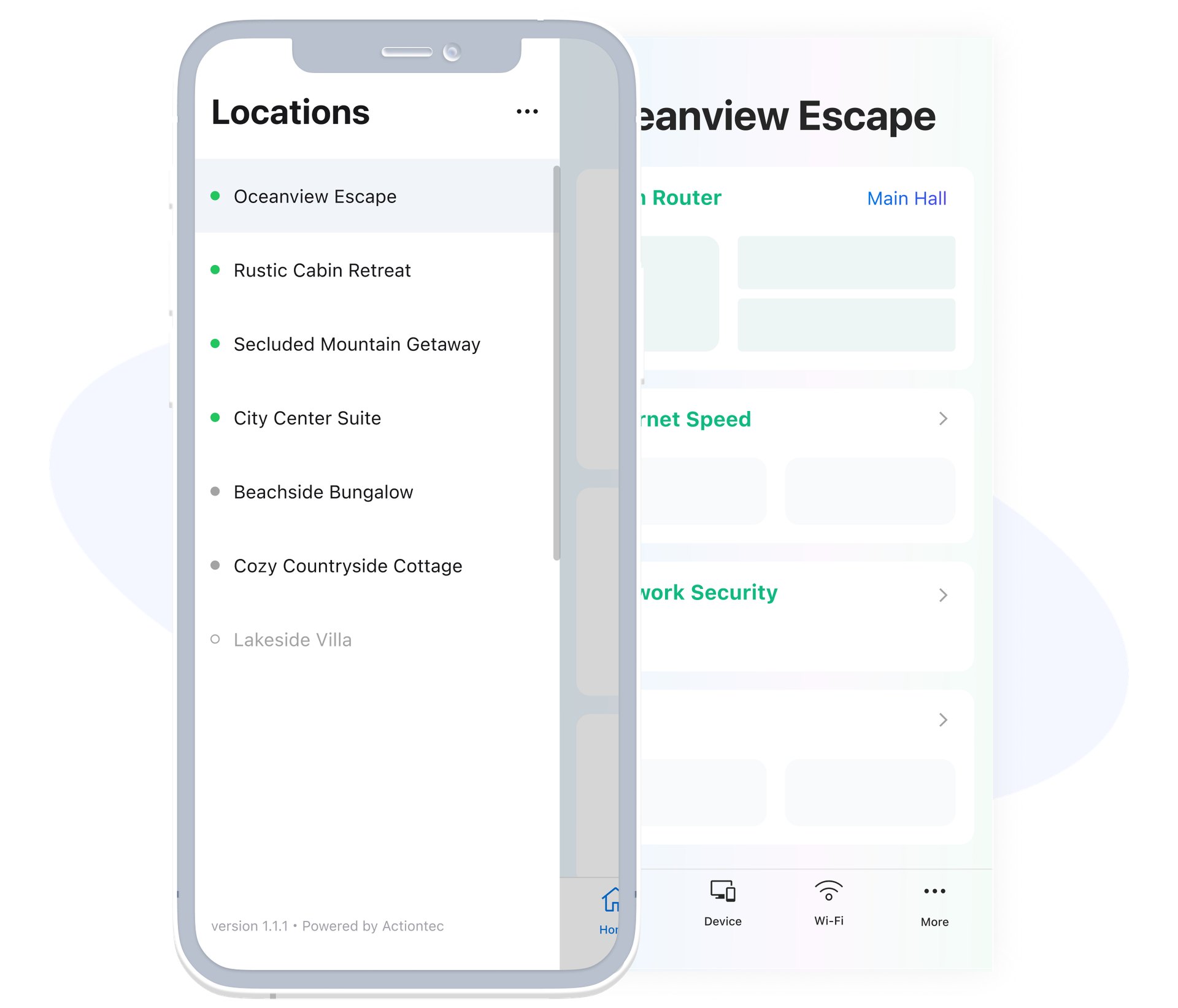
Networks under his management are orderly listed out with clear status indicated on the sidebar, which allows him to switch in between with just one click.
And a quick overview on the dashboard as soon as he lands, basically he can grasp the idea of the summary on each card.
And yeah, an easy onboarding process can’t be less important.
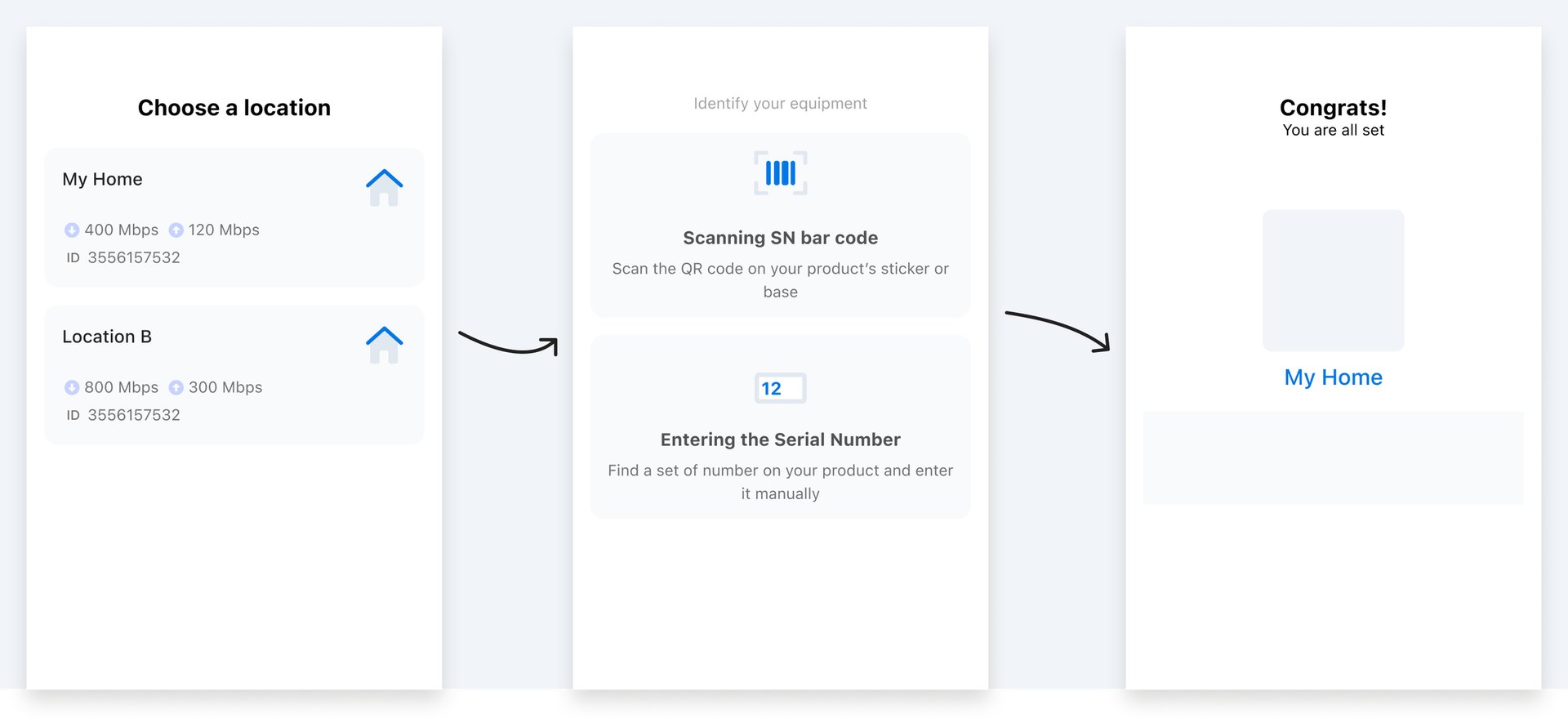
Having a dozen AirBnbs to manage, Ted won’t want to spend too much time figuring out how to set up the wifi service in each of the spots. Optim works the way he likes! For the very first time using it, all Ted needs to do is to plug in the router, open the app, choose a location to connect, and boom! The Internet is all set.
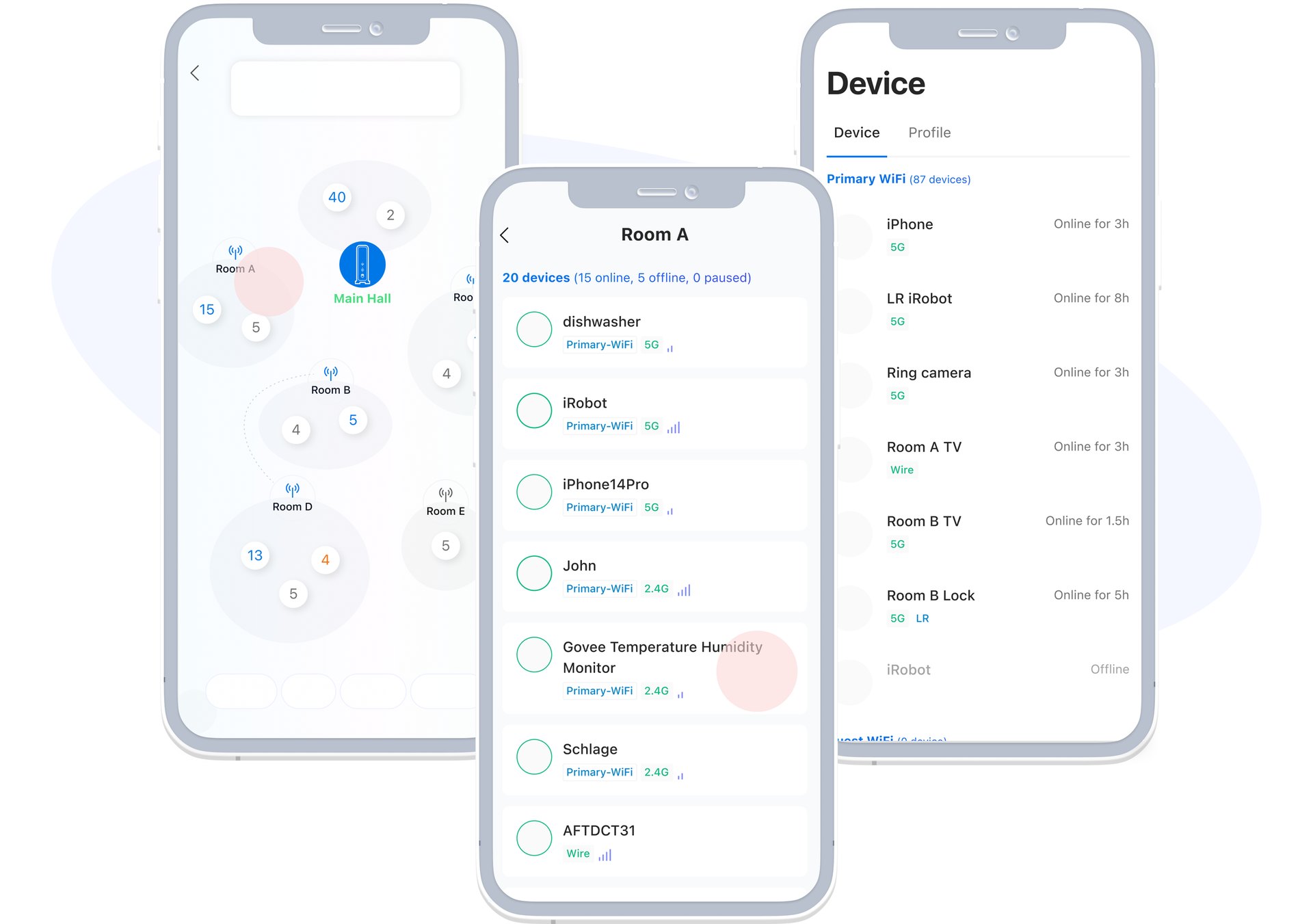
The topology shows Ted an overview of the connectivity relationship. The device list, on the other hand, gives more details about each device, the device name, device type, connection type, assigned profile, online time, and so on.
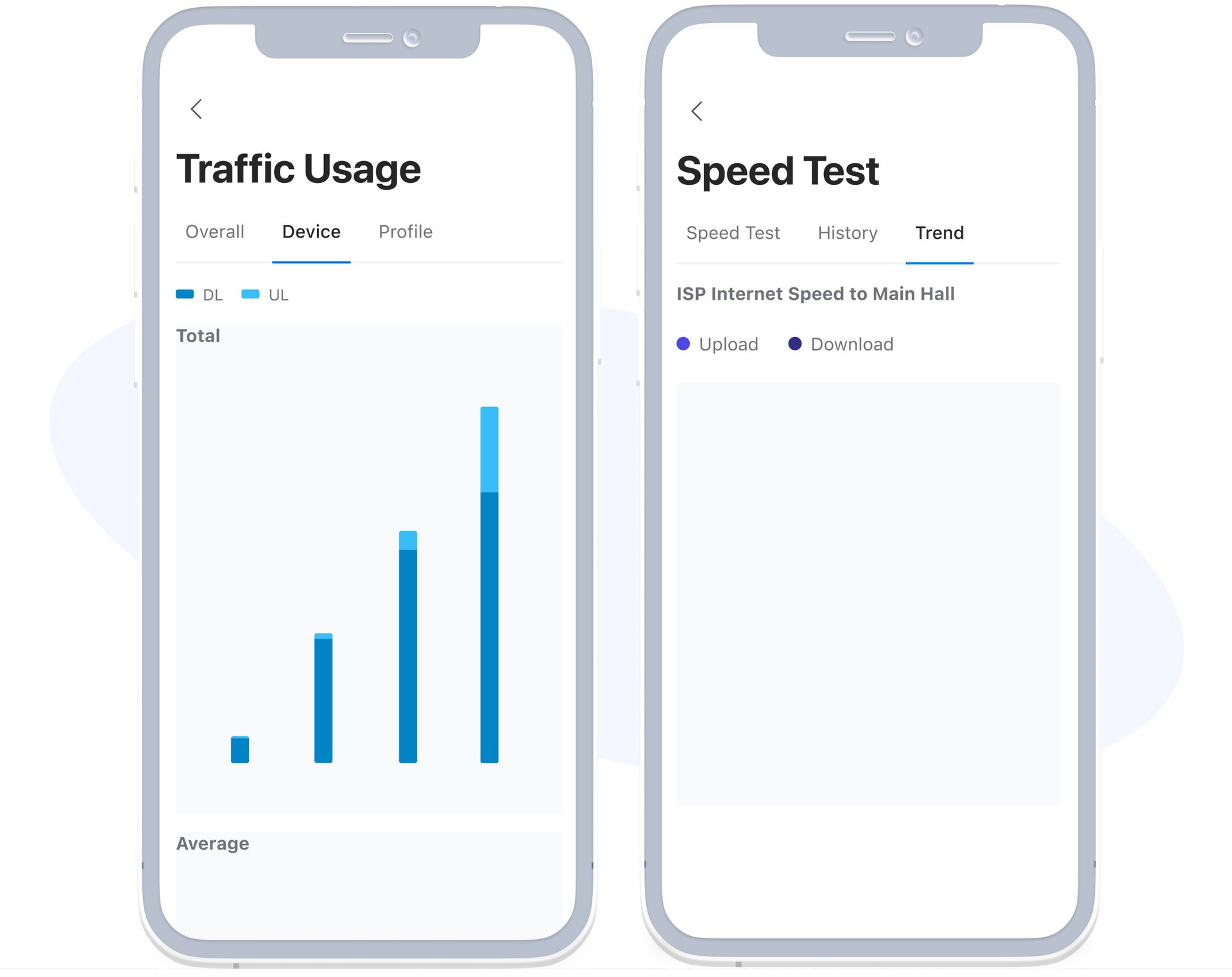
The Traffics and Speed Test report provides Ted with valuable insights into the most-consumed internet resources and the stability of internet connectivity across the various locations he manages. This can furthermore help him better evaluate the optimal internet subscription plan for each location.
Scenario 2 - Single-location casual management 單點鬆散管理

- A mother of three children, two of them being under 12
- Wants to create a safe browsing environment and self-discipline for her children at home
- Checks her children's device's online status remotely to see if they are at home
- In a house of five, it could be more than 20 active devices at a time
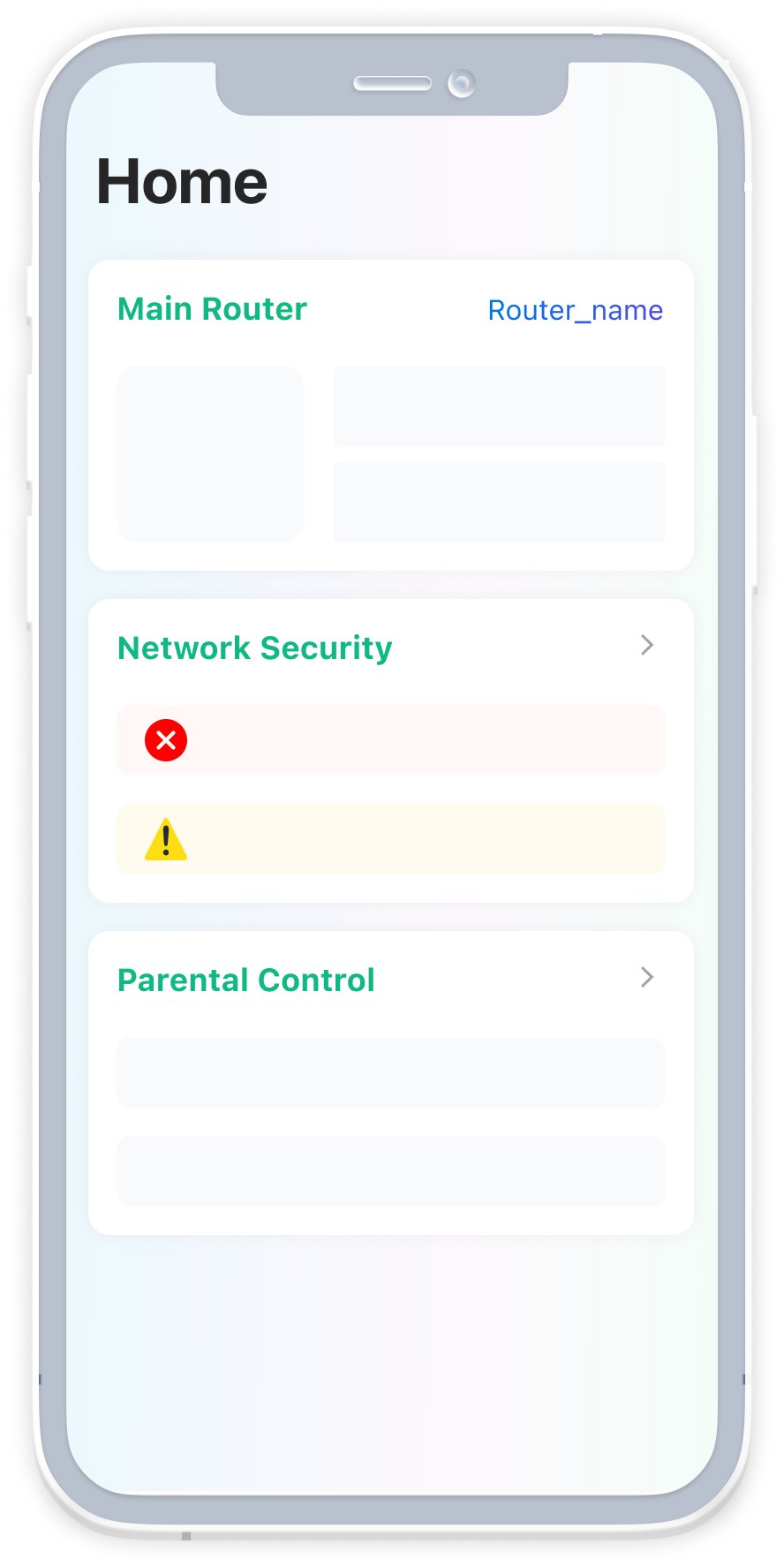
offers an overview of the most important information that Sue really cares about, which also allows her to quickly learn the situation of her entire network. With just one or two steps, she can navigate to the corresponding screen, making the troubleshooting process much easier.
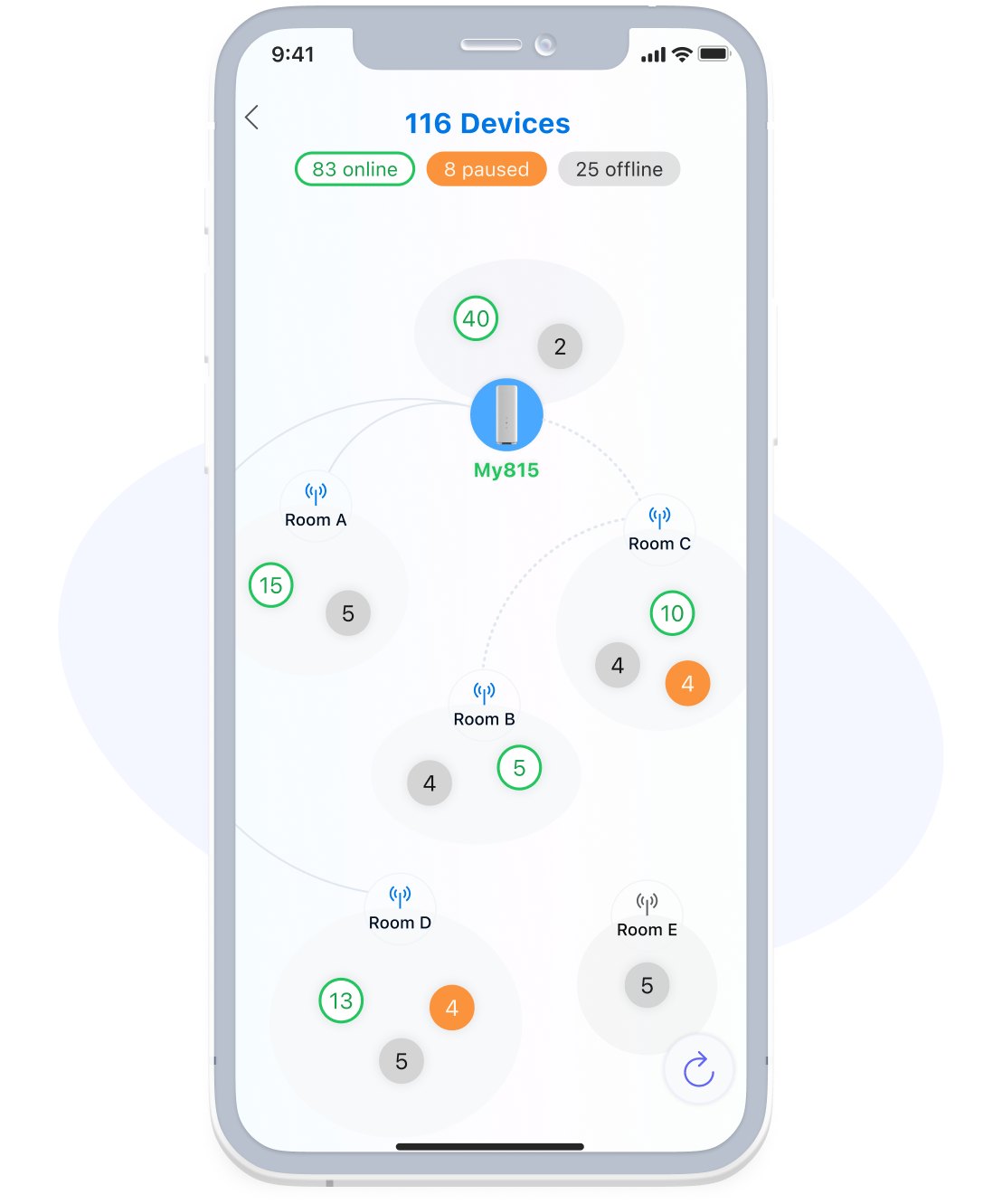
A map better helps her to check out wether her kids at home and what they might be possibly doing.
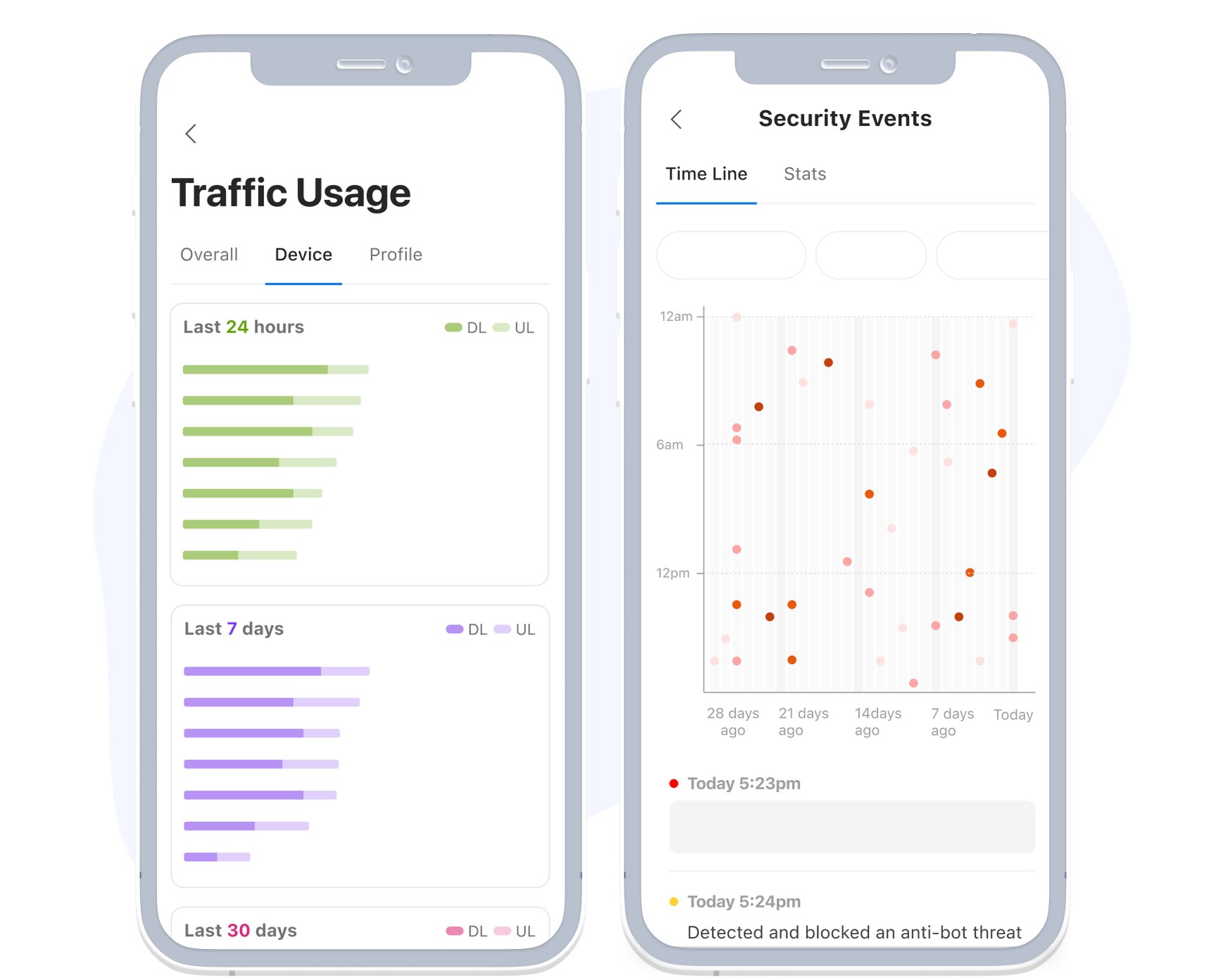
Features complete each other in Parental Control. Traffic usage, for example, it gives Sue a general view of how her family members use the Internet in different criteria.
Security, on the other hand, tells her how safe the network currently is. They function like a digital guard, watching over her children's online behavior and potential surfing attempts, and notifies her if anything suspicious is detected.
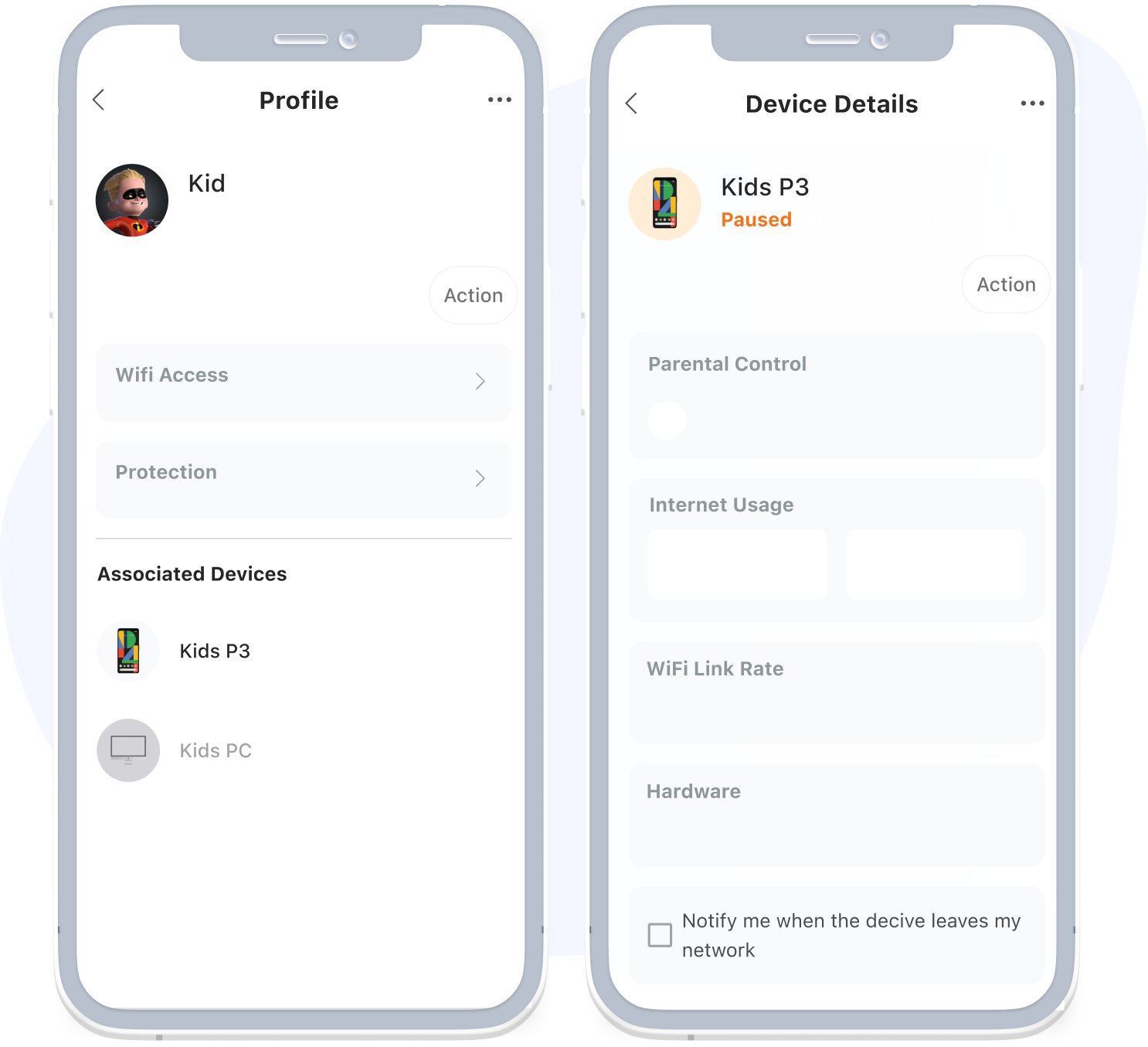
By creating profiles, Sue can set the rules of Internet access and restricted websites for her kids’ devices in just a few steps. She can even remotely pause the connectivity when necessary.
The User Journey
If trying to make it look linear, the user journey would be illustrated by transitioning from this:
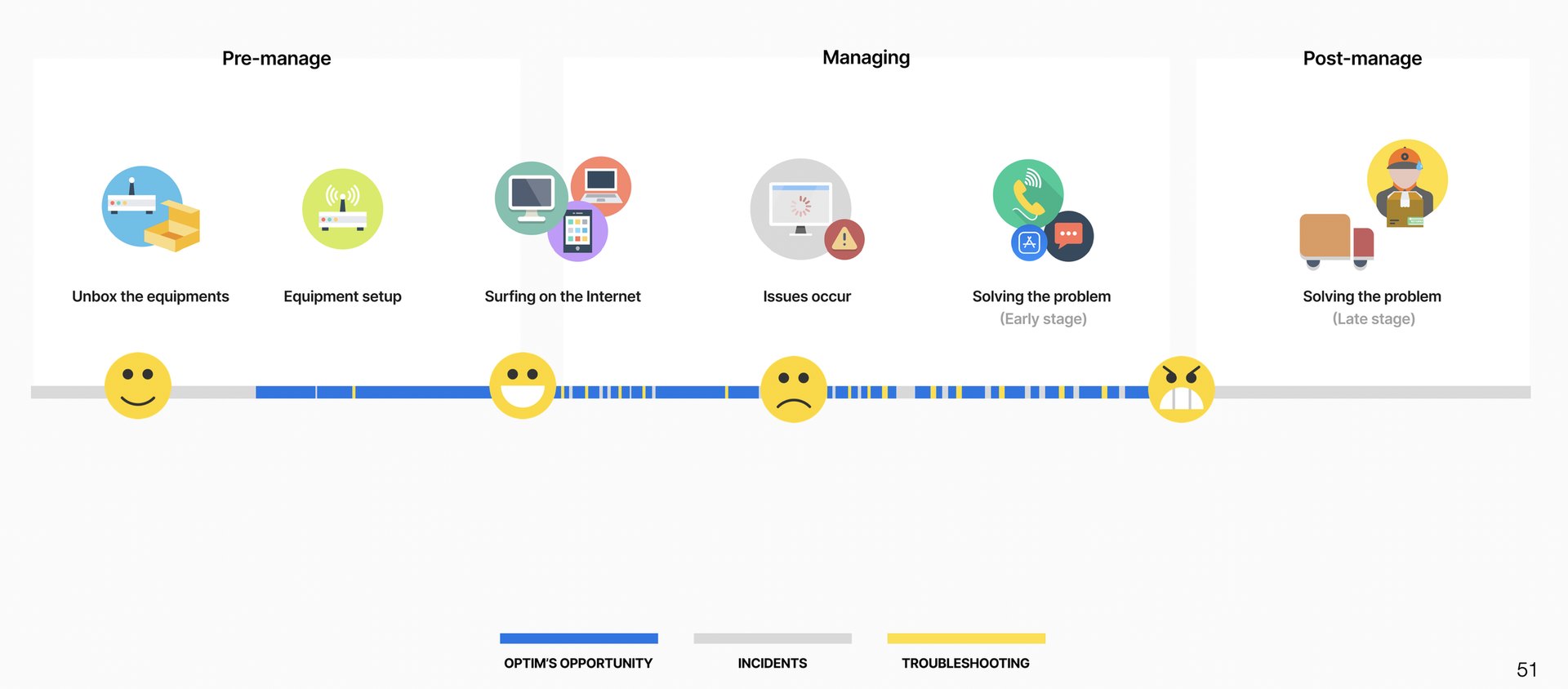
to this:
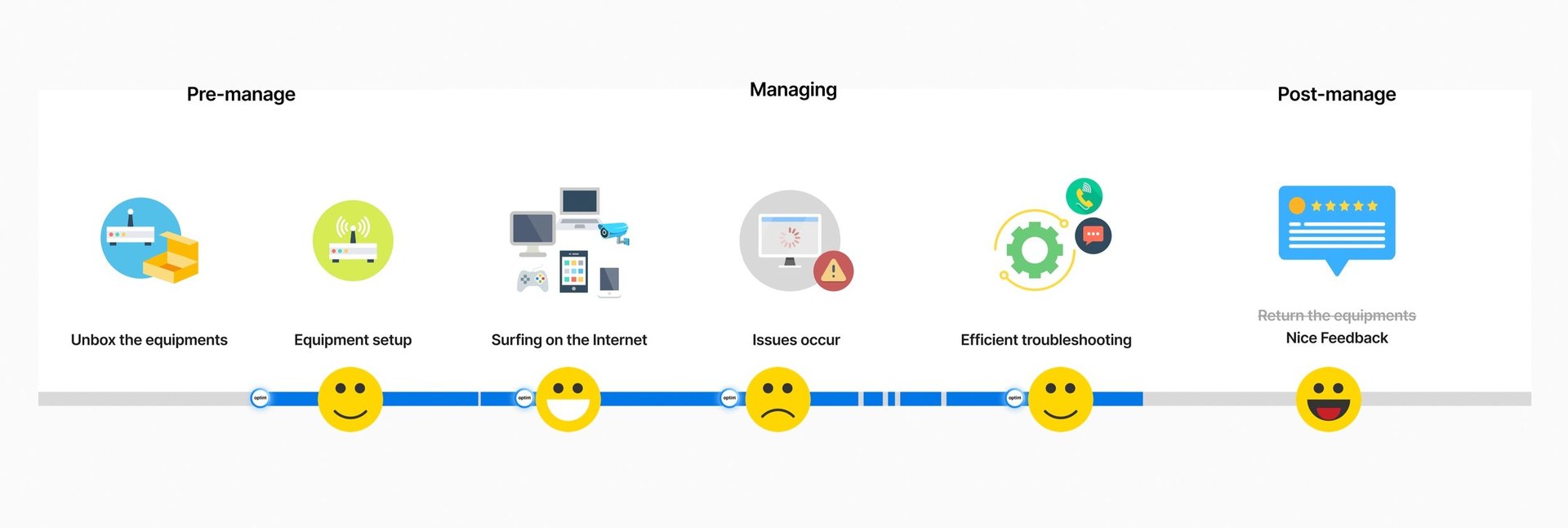
As Optim starts to get involved, we want to make this whole journey as easy and smooth as possible.
With fewer incidents happening, ISPs receive fewer support calls. When issues do occur, Optim notifies and empowers users to handle the problems through its features. And furthermore, users can even proactively prevent hassles like traffic overload, malicious attacks, kids trying to access inappropriate websites, etc. All of this make it more of a seamless home network management experience. With Optim’s help, the users and their ISP would both have a good day!
Icon Design

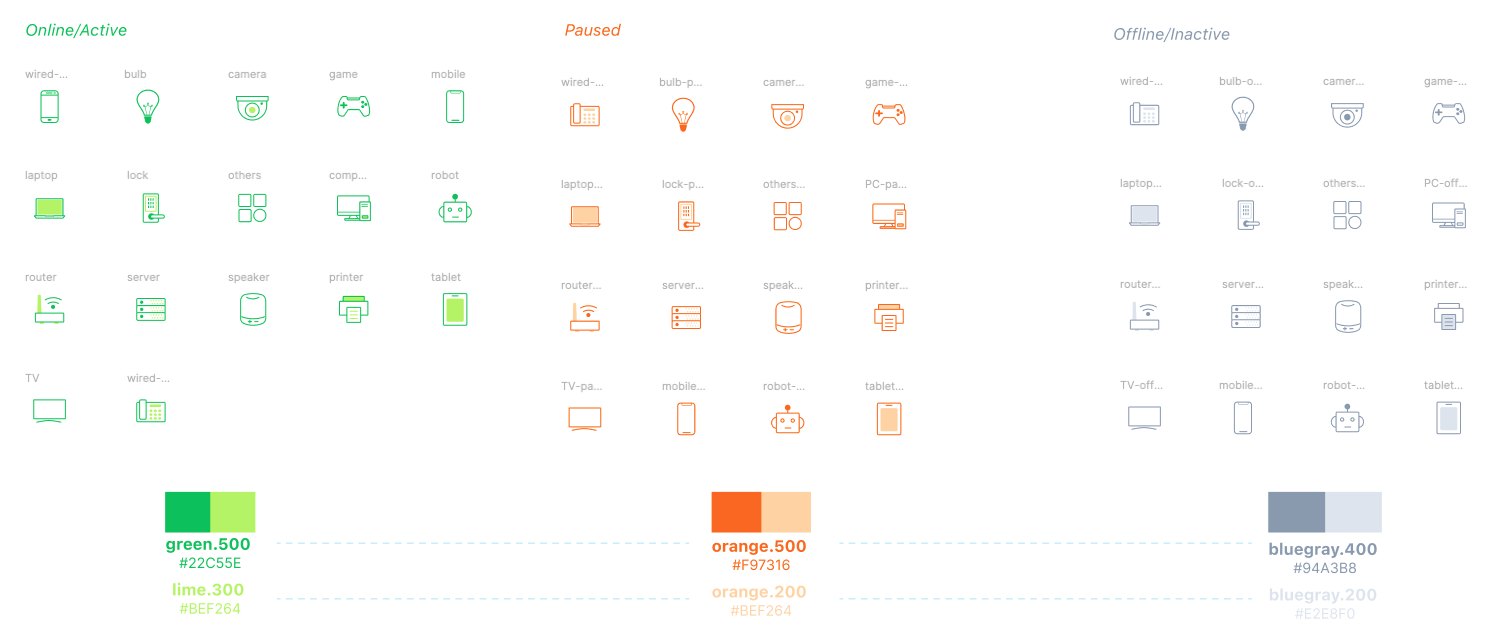
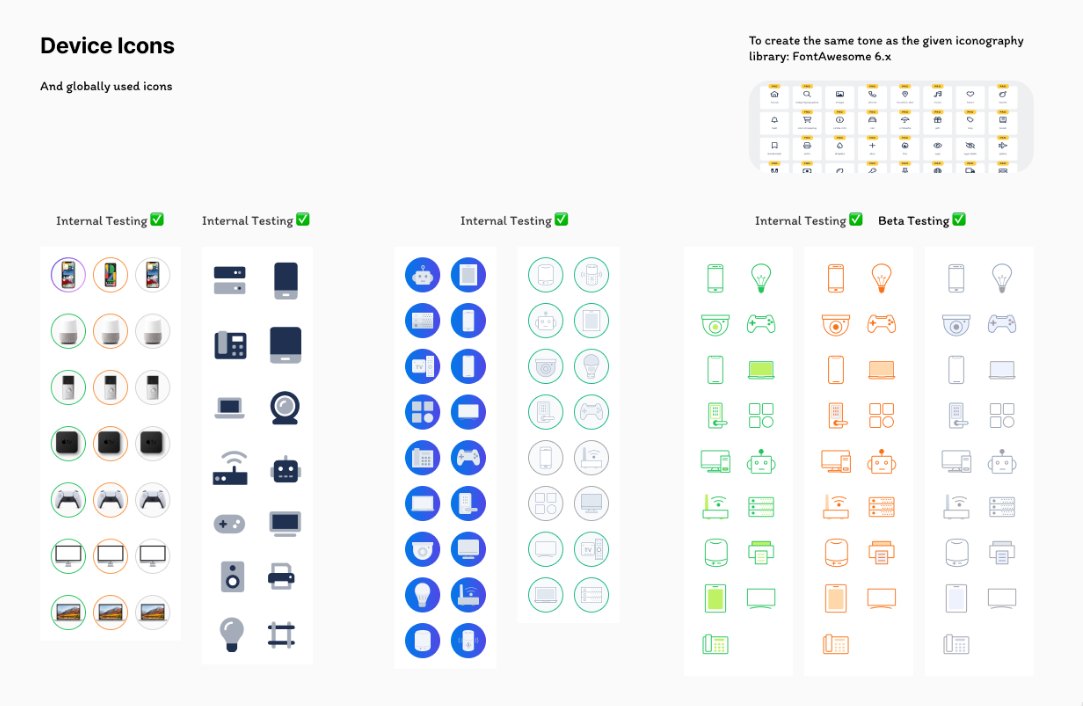
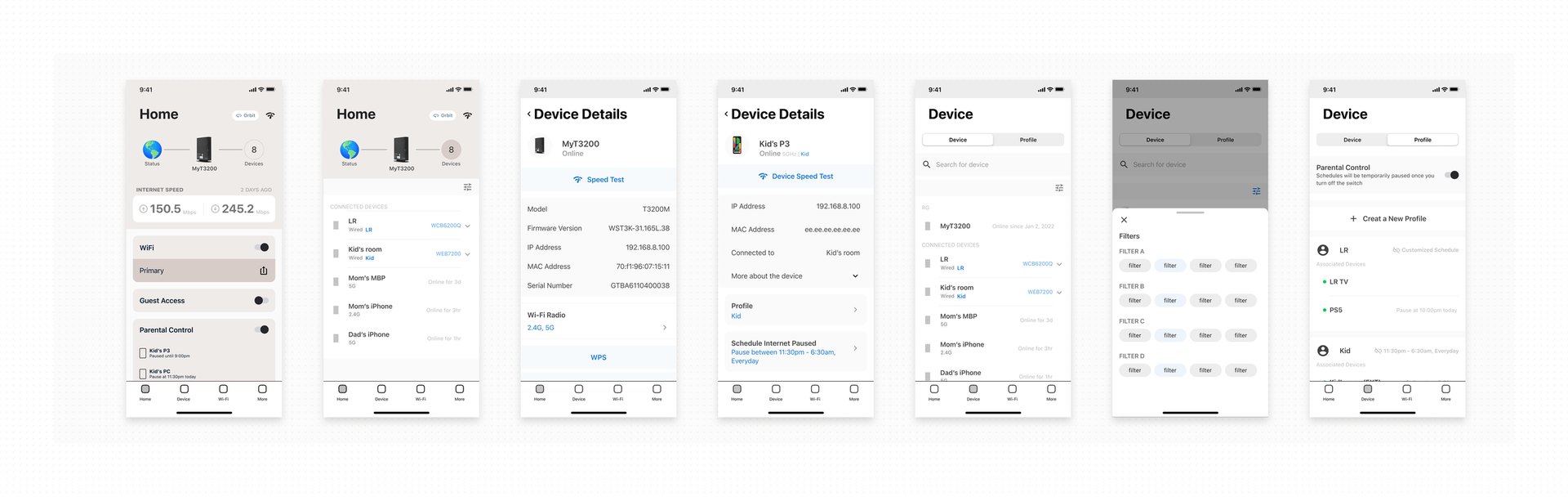
Key screens iterations
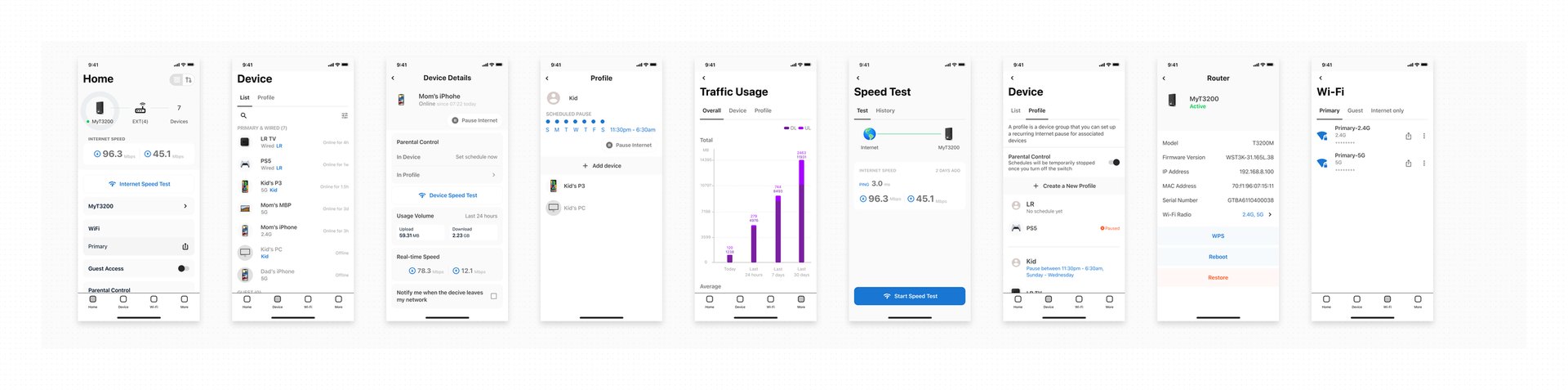

Structure & Userflow Design Document
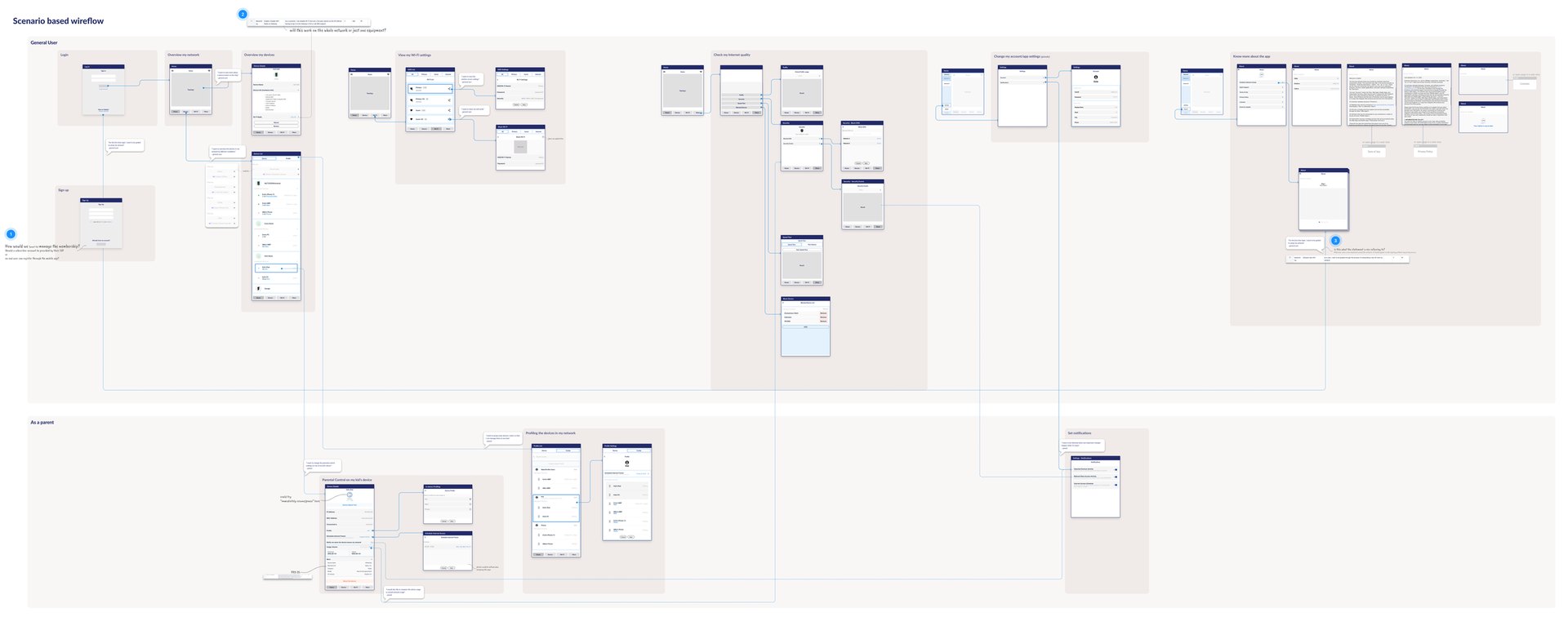
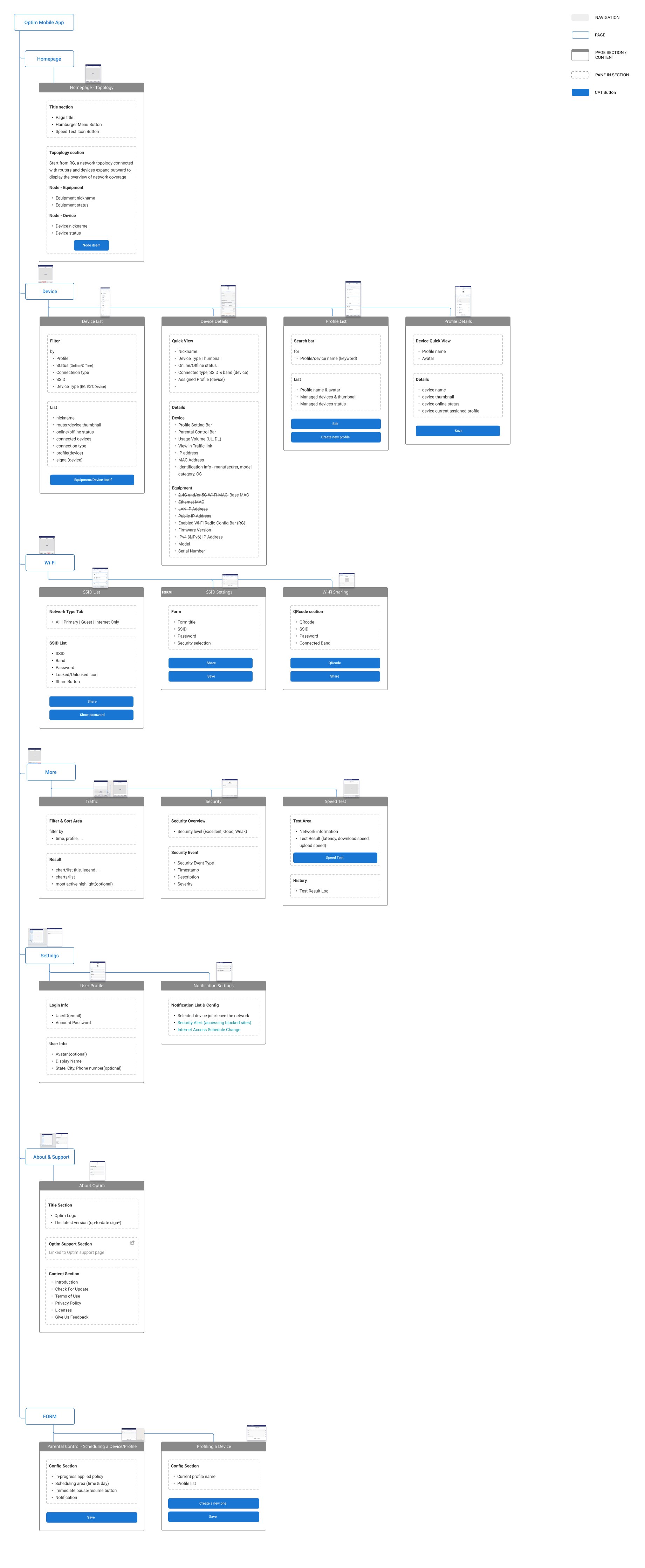
This project is currently in the stage of internal testing. We are eager to leverage what we learn from the feedback and apply it to future Optim experiences.
Iteration 2
Optim Mobile App 2.0
The first version proved the idea — a Wi-Fi remote in your pocket. When the project picked up again, the second version rebuilt it as a product ISPs can hand out. An ISP gives it to its subscribers under its own name and logo; underneath, it talks to the gateway the ISP installed. The router already has every setting — its web page follows the structure of OpenWrt, deep and technical. The project was to bring what a household actually needs from it onto a phone and a tablet.
I led the design, one feature at a time: each feature has its own design doc with its user flow, key screens, every state, responsive specs for phone and tablet, and a status for design, copy and development. The work is ongoing, and parts of it are already being built.
Challenges
How much of a router belongs on a phone?
A router’s settings are organised for the engineer who built them. A subscriber opens the app with one question — is my Internet working? — and occasionally a second one, like opening a port for a game console.
How do we stay honest when the network isn’t?
The app reads the network through the cloud. Gateways reboot, go offline, or get reset, and readings arrive late. Every screen had to say what it knows and what it doesn’t.
Insights
Home is an answer, not a menu.
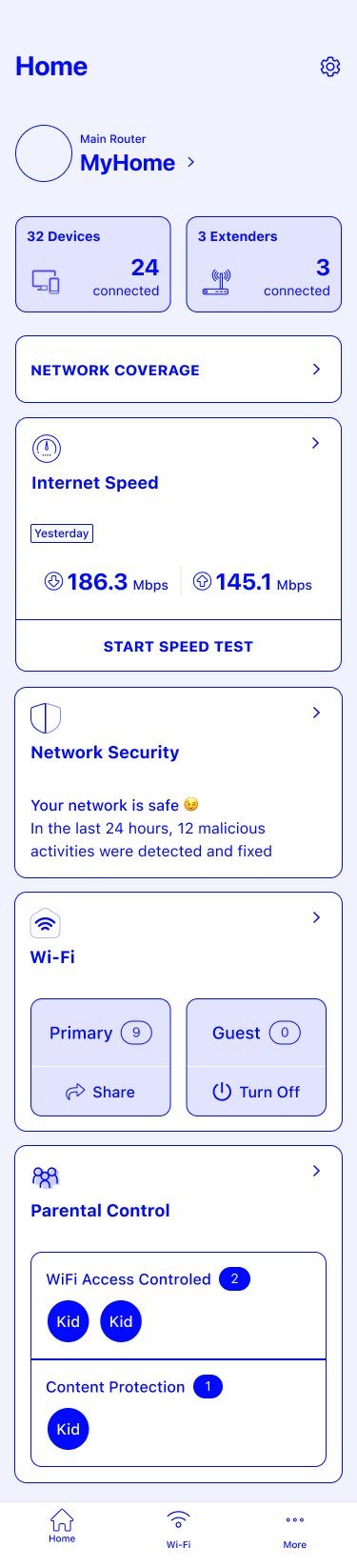
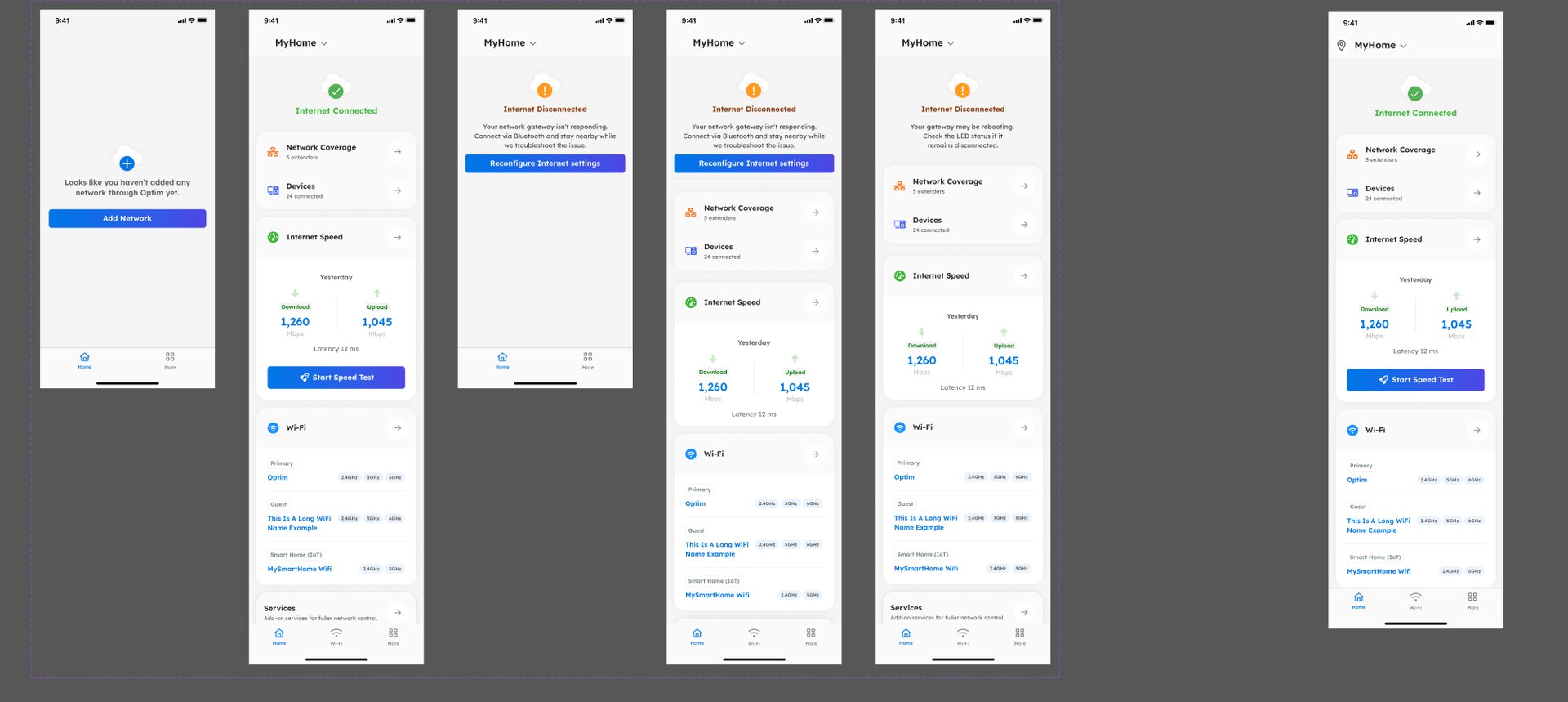
Home opens on the state of the Internet, then Network Coverage, Devices, Internet Speed and Wi-Fi as cards. Everything advanced moved behind More. The header’s action sheet was removed in review — log out, help and settings were rarely used there — and its place kept for notifications.
Design the states before the screen.
Home was drawn in six states first: no network yet, connected, offline after a factory reset, offline unexpectedly, rebooting, and with no ISP logo. When the gateway goes silent, the app shows exactly what the cloud last reported, disables the speed test, and offers one way forward: reconfigure the Internet settings over Bluetooth.
One number, one source.
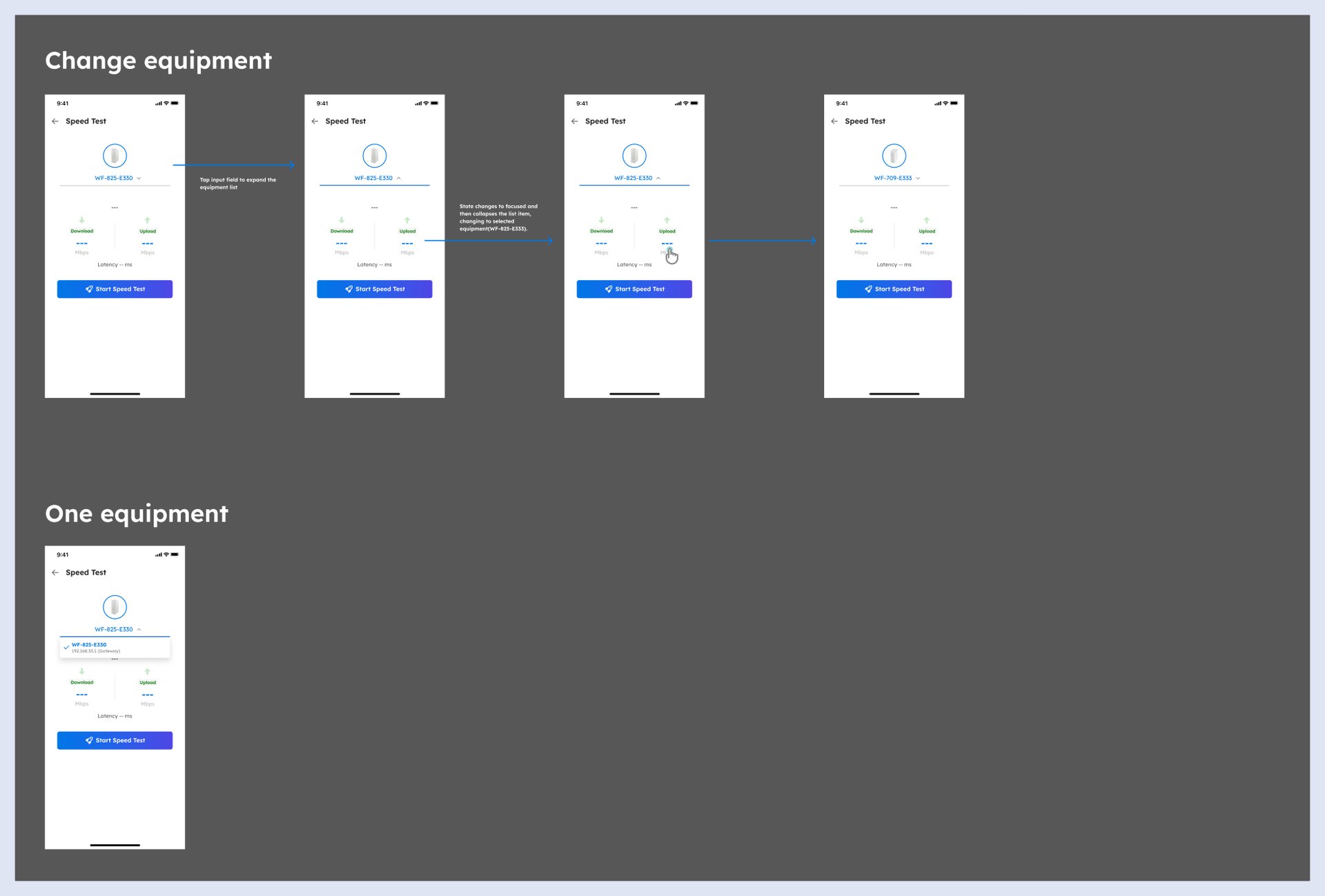
Home only shows the gateway’s speed result. A test run from an extender stays in that session and isn’t shown to anyone else managing the network, so every manager sees the same figure. While a test runs, the controls lock; if it finishes while you’re elsewhere, a toast brings you back.
Advanced settings, one level down.
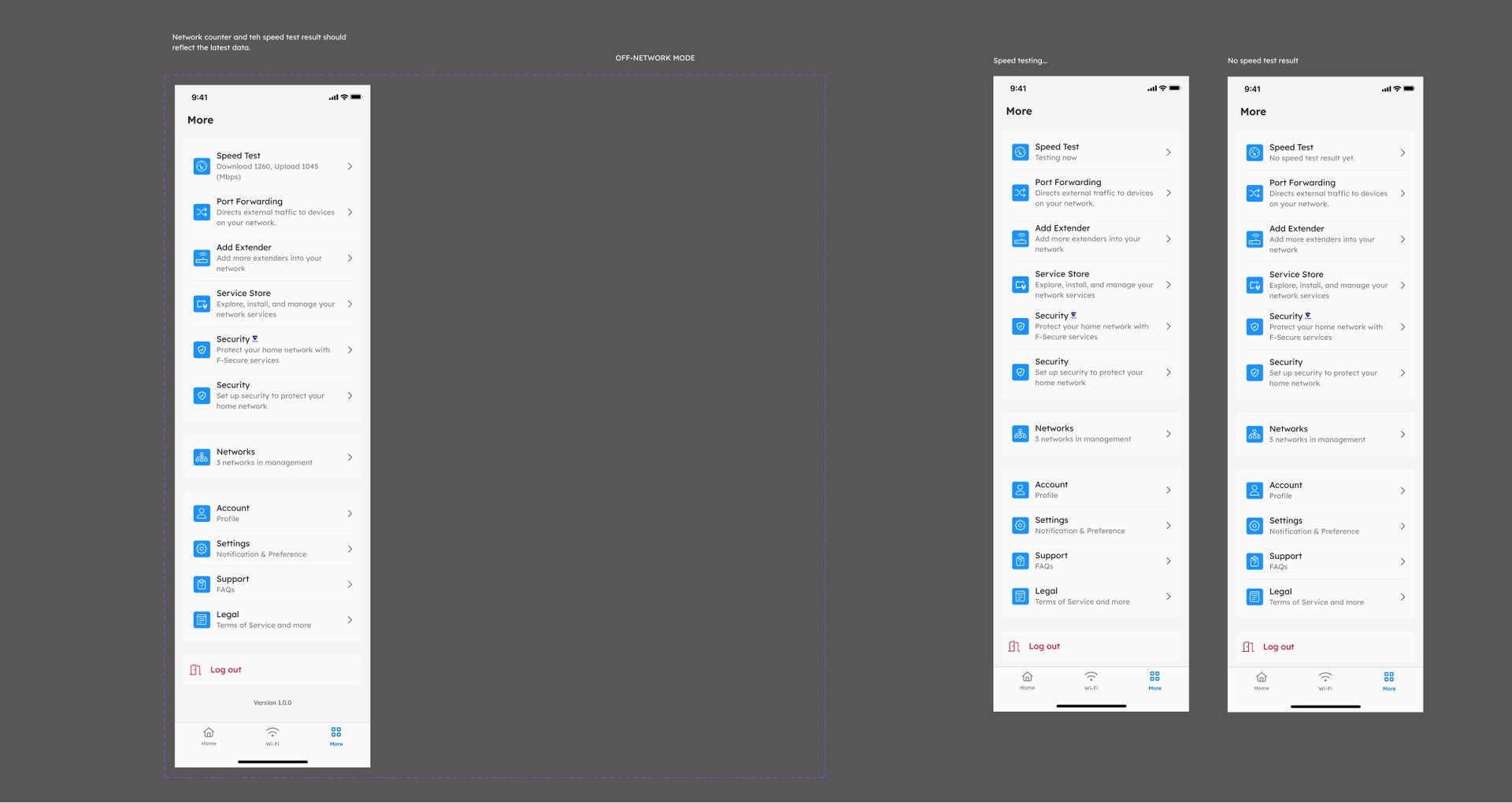
More holds the router’s deeper features — speed test, port forwarding, adding an extender, the service store, security — and each entry says its latest state, so the menu reads like a summary. Port forwarding checks a rule the way the router does: first that each field is valid, then that the ports map, single port to single port or range to range.
Security without jargon.
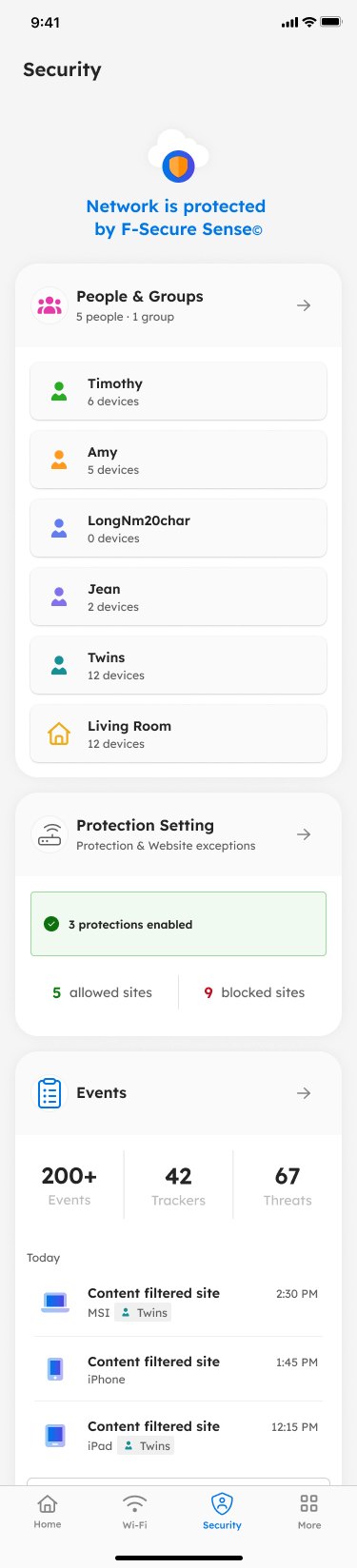
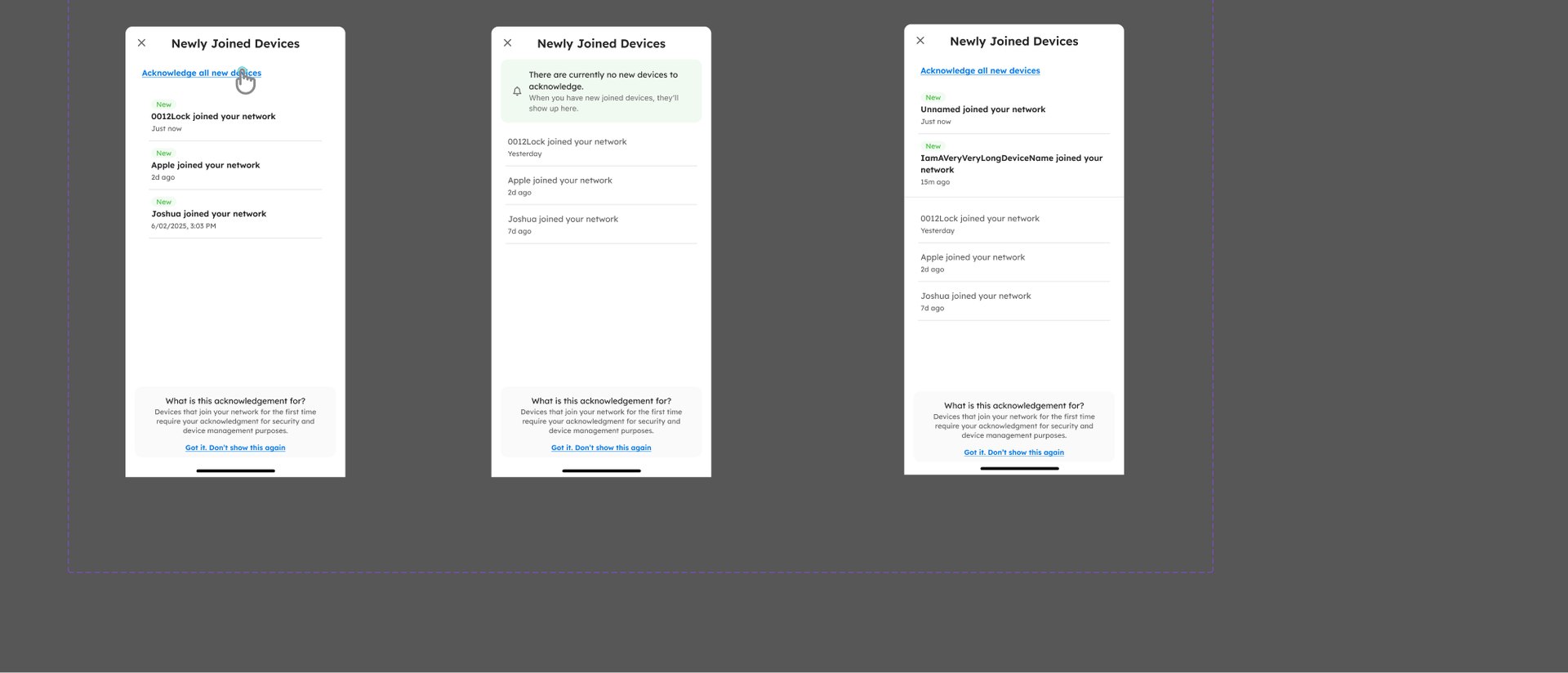
Security groups a household into people and devices, with bedtimes, content filters and allowed or blocked sites, and a plain list of what was stopped. When a new device joins, it is marked New until someone looks at it, renames it, or acknowledges it — the history is kept for seven days.
White-label is a design constraint, not a skin.
Every screen has a slot for the ISP’s logo and a version without one. The ISP decides the connection type, the test servers and the welcome message, and bills the add-on services. The app matches the router’s web page and the ISP’s Optim dashboard in what it can do, but follows its own mobile design system.
Result
Nine design docs, each carrying a feature from flow to responsive spec: Home; sign-in and network setup, with Bluetooth gateway detection and an onboarding that resumes where you left off; Speed Test; Network Coverage; Devices; More; Port Forwarding; Security; and the Service Store. Most are approved for design, copy and development; the newer ones are in review.
Beyond this Project
The core features are moving into development, while Port Forwarding, Devices and the Service Store are still in review. The Service Store raises the next questions — how services are billed, who in a household may buy them — and will be designed alongside the ISPs who sell them.